
Billing for Mosdos: the guide
Everything you need to run billing for a mosed (school) or a shul. Questions? Email admin@billingformosdos.com.
Last updated 25 October 2026.
Quick start (TL;DR)
Billing for Mosdos keeps everyone's balance up to date. It adds regular charges automatically, records payments, and prints clean statements.
- Set up your organisation: Settings › Organisation › Details. Add your name, logo and address, and choose Mosed or Shul. The bank details for statements go in Settings › Statements & messages › Statement layout.
- Set how you bill: Settings › Money › Charges & auto-debit. Choose the charge day and your charge types (e.g. Tuition £120 weekly), plus any sibling discount.
- Add your people: Import a spreadsheet (Import), or press Add parent. Add the children or family members.
- Start the charges: on each parent, open Children & auto-debits and set an auto-debit start date. Charges then add themselves every week, month or term.
- Record payments: Activity › Payments › Add a payment, or upload a bank file. Balances update immediately.
- Send statements: open a parent › Statement › Download PDF, or share a link. On Standard and Pro you can also email statements and send balance texts: your admin switches them on in Settings › Statements & messages › Texts and Email, and every send is previewed first.
- Keep on top: Home shows who owes the most, and Parents › Follow-ups lists what needs attention.
Words used in this guide
- Client: one family, member or donor: the top-level record, with one balance and one statement. (Parents in a mosed, members in a shul.)
- Child: what sits under a client: a child in a mosed, or a pledge or family member in a shul. Each can have its own amount and schedule.
- Organisation: a separate mosed or shul with its own clients, settings and statements. One login can switch between several (Standard and Pro).
- Linked account and Split: a second account inside an organisation, for example a second branch or fund. Split moves chosen clients into it with their whole history (Standard and Pro).
- Auto-debit: a recurring charge the app adds to a client's account on a schedule (for example £45 every Sunday). It adds a charge to the account; it never takes money from a bank account.
- Muted: still enrolled, but paused: no auto-debits or reminders until unmuted.
- Left — owing: has left but still owes money: stays in the lists with the balance, and auto-debits stop at the year end.
- History (Left — settled): left with nothing owing; auto-debits stop.
- Paid into: which of your accounts a payment landed in (a bank account, cash and so on), chosen on each payment and used for the By-account report.
- Standing order: a regular bank payment a parent set up. The app reminds you to check it came in; it never records it by itself.
Parents (or members)
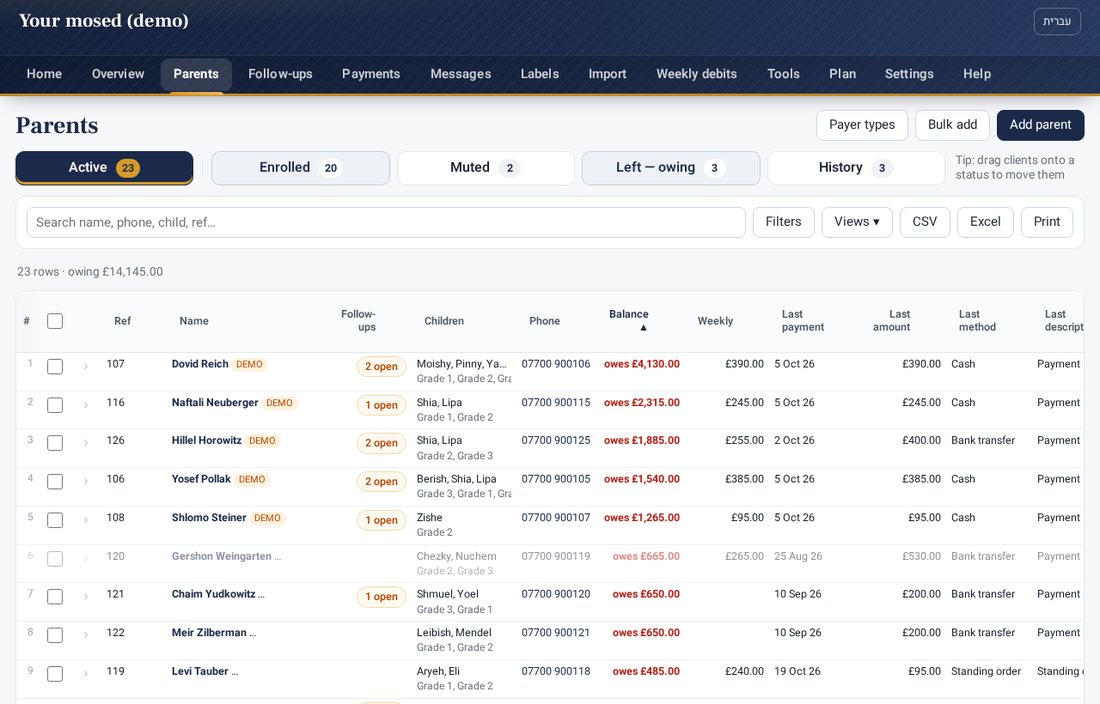
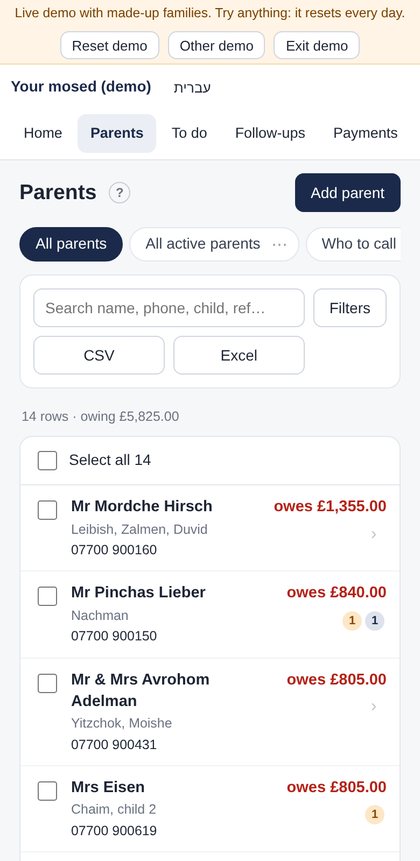
What it's for: your daily hub, with everyone in one list showing balance, children, phone and last payment.
Step by step
- Search with the box at the top: name, phone, child or account number.
- Status chips at the top: Active (the default: Enrolled + Left — owing), then Enrolled · Muted · Left — owing · History, each with its count. Click Active for the usual list. Click a status to see only that one, then click others to add them (for example Enrolled + History); click one again to take it off. Muted clients are still enrolled, so they show in light grey under Enrolled. Your choice is remembered every time you log in, until you change it. Views ▾ keeps your own saved filter sets (press Save the current filters as a view; ⋯ renames, updates, moves or deletes one).
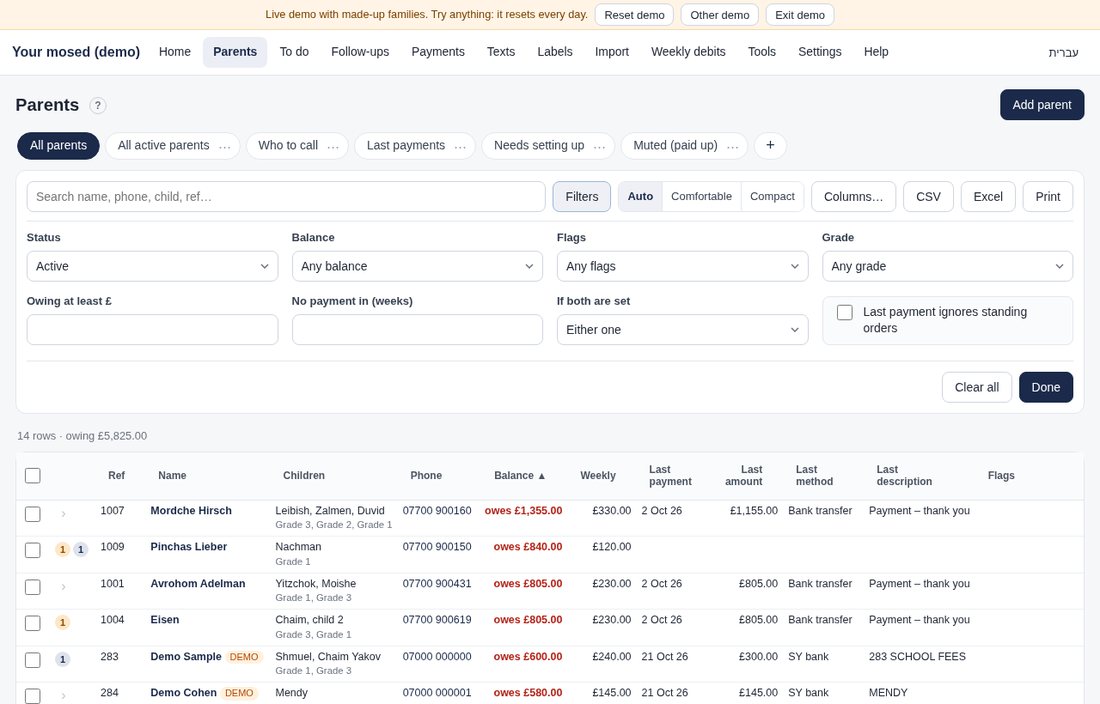
- Filters: press Filters for status, balance, flags, grade, "owing at least £…" and "no payment in … weeks". Each active filter shows as a chip; press × to remove it.
- Column filters: hover a column header and click the funnel. Filter by text, a number range, a date range, or a list of values.
- Columns: the standard columns show, and a column that's empty for everyone stays out of the way. Click a column title to sort (Shift+click another one for a second sort), drag a title left or right to move the column, and click the eye on a title to hide it. N hidden columns ▾ above the table brings one back. Your layout is remembered for you on this account straight away, with no Save button (Settings › Columns lists them all and has Back to the standard layout).
- Edit in place: double-click a phone, email, address, note, arrangement or follow-up cell. Press Enter to save or Esc to cancel. An Undo appears after each save.
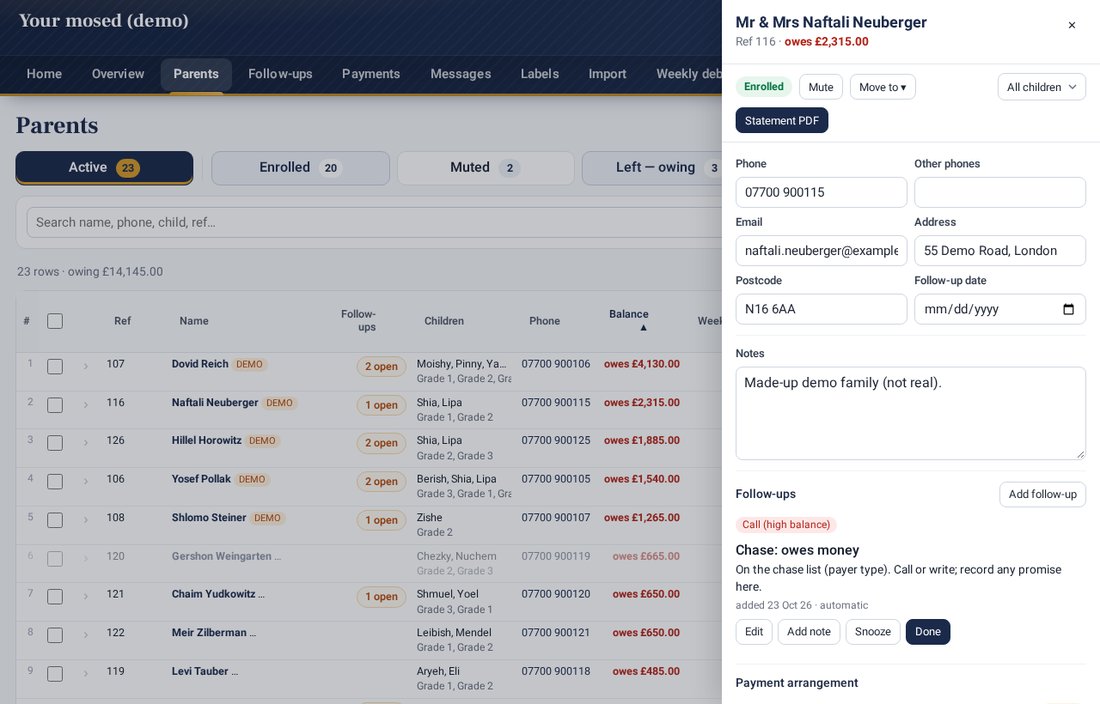
- Side panel: click › at the start of a row, or double-click the row. It shows details and notes, follow-ups, the payment arrangement (each child's payer type and method, how they usually pay, standing orders with their bank account and reference) and all transactions (scroll down for older ones), and has a quick add for a payment or charge. The # column numbers the rows; Follow-ups shows how many open follow-ups a client has (click it to open the panel).
- Print and zoom (v10.25): press Print and choose Landscape or Portrait, Fit to page width and the text size, then Print. Every column you show goes on the page (shrunk to fit when the list is wide; long notes wrap onto two lines) and the column titles repeat on each page. Fewer columns print bigger. Use − and + next to it to make the list smaller or larger on screen (60%–150%); press the % to go back to 100%. Your choices are remembered on that device. (Ctrl/⌘ + and − still zoom the whole page.)
Adding a parent. Press Add parent. Besides the name, phone, email and address, fill in the Agreed method, the amount and how often, the Enrolment date (for grades and moving up), Debit starts (when the weekly auto-debit starts: the first Sunday from enrolment is filled in, change it if needed) and each child with a weekly amount (that sets up the child's auto-debit from Debit starts). Or write it in the first note, e.g. standing order £45 a week, enrolled 1 Elul, and tap the suggestions under the note (Fill all takes them all). The box at the bottom shows what will be set up, including any past weeks that will be added. Nothing is saved until you press Add parent. No texts and No emails start unticked.
Deleting a parent. On the parent's page press the red Delete parent (also in Details and in Edit details). The popup lists what goes with them (children, transactions and payments, auto-debits, standing orders, notes, follow-ups, files) and the balance. Tick I understand, then Delete; Cancel (the default) leaves everything as it was. The parent and all of theirs disappear from the Parents list, search, statements, totals, Home, the weekly auto-debit and texts and emails, but nothing is wiped: Parents › Recently deleted lists everyone deleted in the last 30 days, and Restore brings each one back with exactly what was deleted with them (anything deleted separately before stays deleted; missed auto-debit weeks are added when they come back). For someone leaving or taking a break, use Mute or Change status instead: deleting is for mistakes and tests. Read-only logins can't delete.
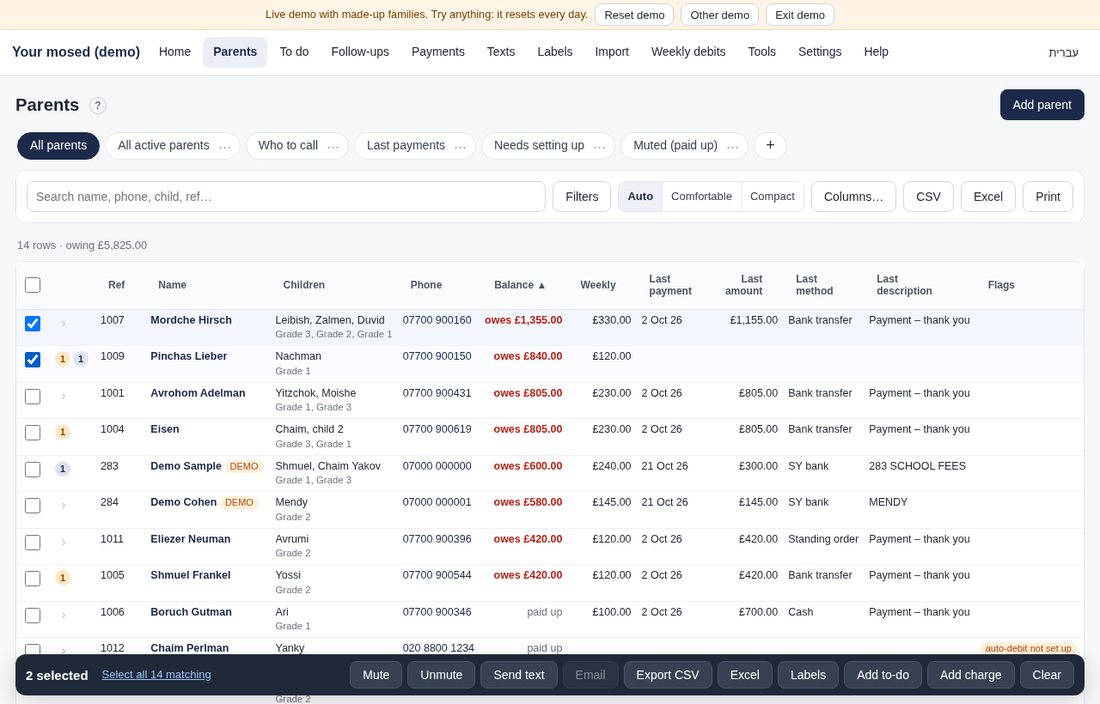
Acting on many at once: tick rows (or the header box for everyone matching). A bar appears at the bottom with Mute / Unmute, Send text, Email, Export CSV/Excel, Labels, Add to-do, Add charge (or pledge).
Tips
- On a phone the list becomes cards. Tap a name to open the parent.
Calling a client: every phone number (Parents list, phone view, side panel, client page, Follow-ups) is a call link. On a phone, or a tablet with a SIM card, tap it and it dials straight away from that SIM. UK numbers are dialled in international form (+44…), so numbers typed as 07…, 020…, 44… or +44 0… all work. In the side panel, the green phone button next to the number calls it.
Bulk add, files and pages
- Bulk add clients: Parents › Bulk add. One child per line (repeat the parent's name for a brother or sister). Copy the rows in Excel, click the first cell and paste. Check shows what will be added; nothing is saved until you press Add them.
- Bulk add payments: Activity › Payments › Bulk add payments. One payment per line: date, client (name or ref), amount, method, description. They go through the same checks as an import (matched to a client, compared with payments already recorded) and wait in the review queue for you to tick and record.
- Files: each client has a Files tab for contracts, forms and letters (PDF, pictures, Word, Excel; up to 15 MB each, with a label). You can also attach files when adding a parent. Only signed-in users can open them; Delete moves a file to the bin, where it can be restored. Files are included in the full backup.
- Pages: every list longer than 25 lines is split into pages. Choose 25, 50, 100, 250 or All lines per page; Make this my default remembers it for your login. Printing always prints the whole list.
- History: clients who left with nothing owing are on the History (left — settled) tab of the Parents page; Left — owing has its own tab too. Muted is only for clients who are still enrolled but paused.
New clients from the template
What it's for: bringing all your clients in at once when you start (or adding many new ones), from one spreadsheet.
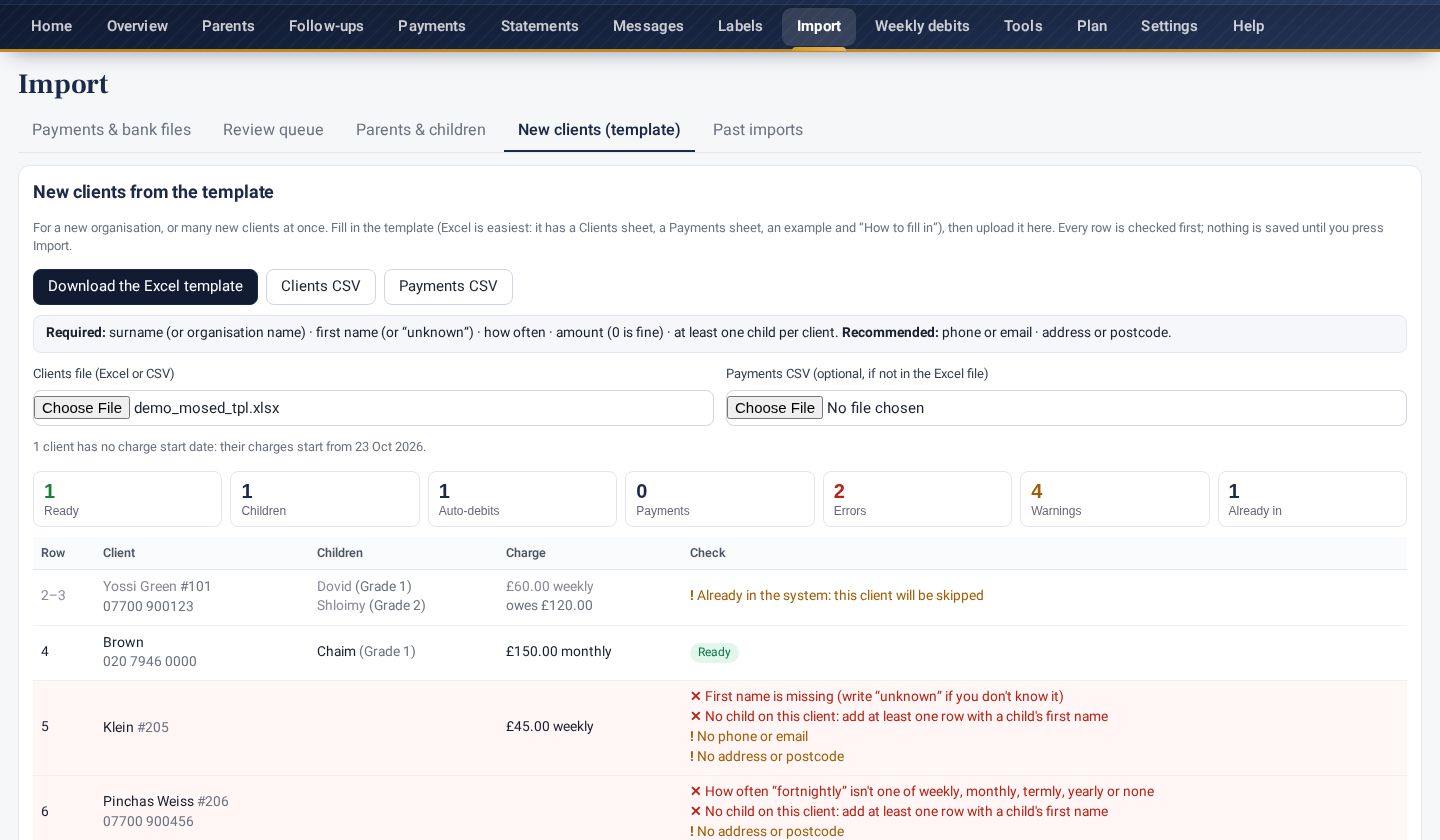
- Import › New clients (template) › Download the Excel template. It has a Clients sheet, a Payments sheet (optional, for past payments), an Example and How to fill in. CSV versions are there too.
- One row per client, or one row per child: put each further child on the next row and leave the client columns empty (or repeat the same Client ref).
- Required (marked ): *Surname (or Organisation name for a company or charity), First name (write unknown or ? if you don't know it: it's left empty), How often (weekly, monthly, termly, yearly or none) and Amount (0 is fine; it can be left empty when every child has its own Child amount). A mosed also needs at least one child per client. Recommended: a phone or email, and an address or postcode.
- Upload the file. Every row is checked: the tiles count Ready, Errors, Warnings and Already in (tap one to see only those rows). Errors (in red) say exactly what to fix; warnings (in amber) don't stop the import.
- Press Import. Rows with errors are left out: fix them in the file and upload it again. Clients already imported are skipped, so nothing is added twice.
Each client gets their auto-debit from How often, Amount and Charge start date (empty = the first charge date in Settings › Money › Charges & auto-debit); an Opening balance becomes "Balance brought forward".
Children and grades
What it's for: each parent's children (or a member's family members), their class or membership type, and their own weekly amount.
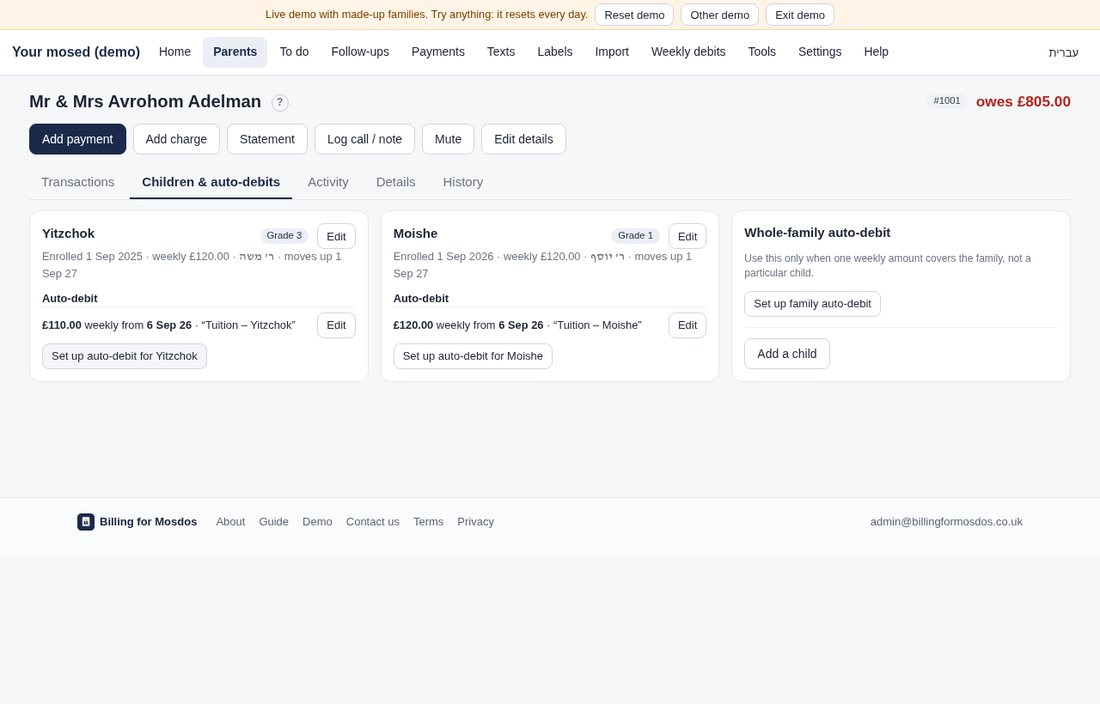
- Open a parent › Children & auto-debits › Add a child.
- Enter the name (optional: a blank name shows as "child 1"), the grade or class, the enrolment date and the weekly amount.
- Children move up a grade automatically each year (Settings › Organisation › Preferences › Grades). You can turn this off per child.
- When a child leaves, set the grade to the "left" label and mark them Left — owing or Left — settled (see Leavers below).
- Pays by and Funding / top-up (in Edit): how this child's fees are paid, for example standing order, card, childcare funding or a company, and a note such as "childcare funding covers 15 hours, parent tops up the extra hours". Two children of the same parent can pay in different ways. Both show on the child's card, and when you record a payment for one child the method is filled in for you.
- Mute one child with the Mute button on the child's card: only that child's auto-debits pause, and the parent's other children carry on. See Muting below.
Tip: a client that pays one combined amount can have one auto-debit instead of one per child.
Leavers: Left — owing and Left — settled
When a client leaves, move them to Left — owing or History (drag them onto the chip, or Change status ▾ on their page). When one child of several leaves, press One child left… on the client's page:
- Left — owing: they still owe money, so they stay in every list, follow-up and the owing views, with a badge such as Left — owing £450. Auto-debits carry on only until the year ends (the last Sunday before the next year starts, see School year below) and then stop by themselves. When the balance reaches £0, a follow-up asks whether to move them to Left — settled (and the parent's page shows a Move to Left — settled button).
- Left — settled: nothing is owed. Auto-debits stop straight away, no reminders go out, and once all the children have left they move to History (Parents › Filters › Status › History (left — settled)). The balance should be £0; if it isn't, you are asked to confirm. Their record, history and balance stay.
- Revive / re-enrol: for a client in History that comes back (for example with a new son). They return to the active lists. Auto-debits don't restart by themselves: add the child or set the weekly amount, then set up the auto-debit.
On Parents, the status chips (Active, Enrolled, Muted, Left — owing, History) show each group, and you can drag clients between them (see below).
Moving clients between statuses
Every client is in one of four statuses: Enrolled, Muted (enrolled but paused: no auto-debits or reminders), Left — owing and History (left, nothing owing).
- Drag and drop: on Parents, drag a client's row onto a status chip, like moving an email to a folder. Select several first and drag one of them to move them all.
- Without dragging: select clients and press Move to ▾ on the bar at the bottom, or press Change status ▾ on the client's page or in the side panel.
- Every move asks when and why: the date, a reason (choose one or write your own; it's required) and notes. They're kept in Status history on the client's History tab, and the latest one shows at the top of the client's page.
- History needs a £0 balance. If a client still owes (or is in credit), you're offered Left — owing instead, or you can move them anyway.
- Out of History (revive): move them back to Enrolled or Muted. Auto-debits that were stopped don't restart by themselves: set up the auto-debit again on the client's page.
- Mute is one button: press it to mute (it stays pressed and grey), press it again to unmute. Both ask the short when-and-why question.
- One child left: on the client's page, One child left… marks just that child.
Shuls and other organisations
Choose Shul in Settings › Organisation › Details and the whole app speaks your language. For example, Parents becomes Members, Children becomes Family members, Grade becomes Membership type and Tuition becomes Dues. You can override any word. Nothing about your data changes.
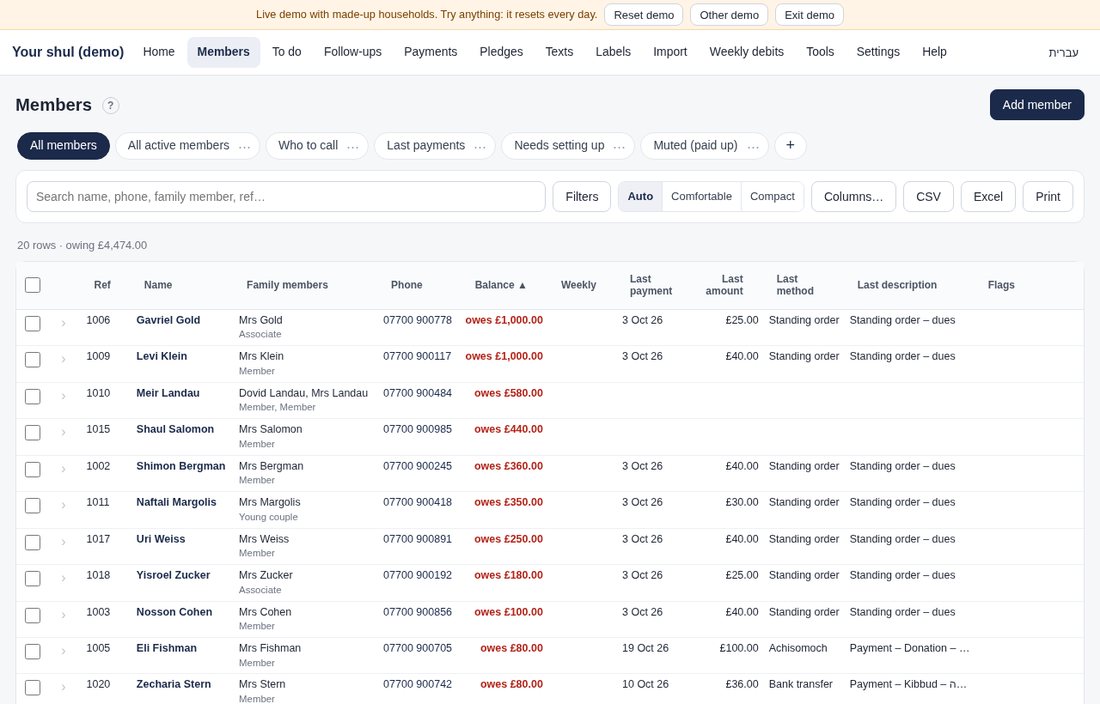
Hebrew (עברית)
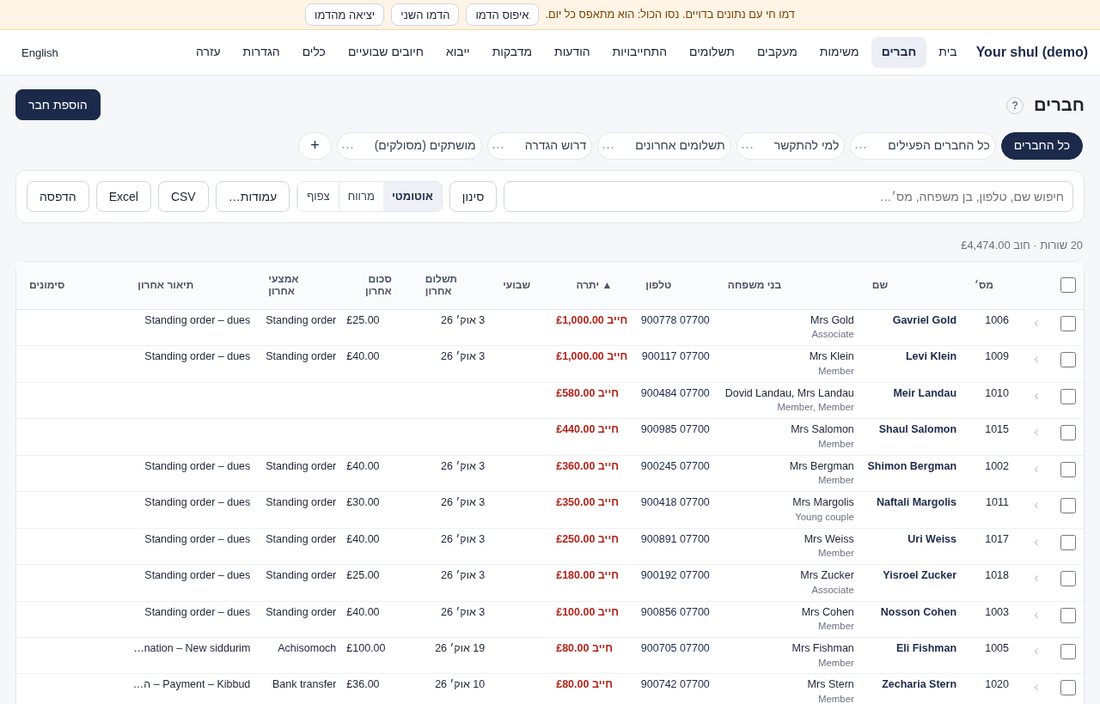
Press עברית at the top right to switch the app to Hebrew. The layout turns right to left, and your choice is remembered for your login. Press English to switch back. Statements and PDFs stay in English, with Hebrew dates, parsha names and any Hebrew names.
Install the app
Open Settings › Get the app (also in the menu under your initials). It has two ways to have Billing for Mosdos as an app, with step-by-step pictures for Windows, Mac, iPhone/iPad and Android.
Connected app (everyone). Installs from your browser in a few seconds, opens in its own window with its own icon, and updates itself. It needs internet: everything is saved straight to the server.
- Windows and Mac: in Chrome or Edge, click the Install icon at the right end of the address bar, then Install (on a Mac in Safari: File › Add to Dock).
- iPhone / iPad: open billingformosdos.com in Safari, tap Share, then Add to Home Screen.
- Android: open it in Chrome, tap the ⋮ menu, then Install app (or Add to Home screen).
Desktop app for Windows and Mac. Get the app also has Download for Windows and Download for Mac: the same app as an installed program. The first time, Windows may show Windows protected your PC: click More info › Run anyway. On a Mac, if it says Apple can't check the app: System Settings › Privacy & Security › Open Anyway. This shows because the installer isn't signed yet.
The demo
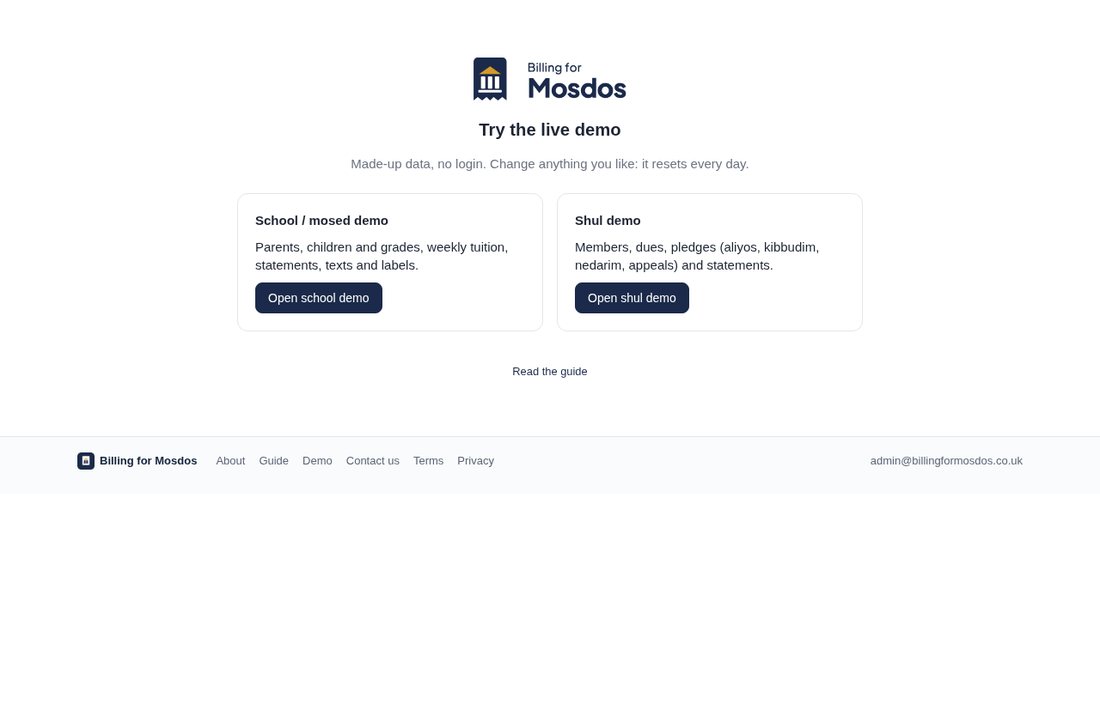
/demo opens two public demos with no login: a school and a shul. They contain made-up clients and members and are completely separate from real accounts. Change anything you like. Reset demo puts the sample data back, and each demo also resets itself daily.
Charges and the weekly run
What it's for: regular charges add themselves, so balances are always current.
- Auto-debits start from the date you set and repeat weekly, monthly or termly (term dates are in Settings › Money › Charges & auto-debit).
- A past start date adds the missed weeks immediately. A future date charges nothing until then.
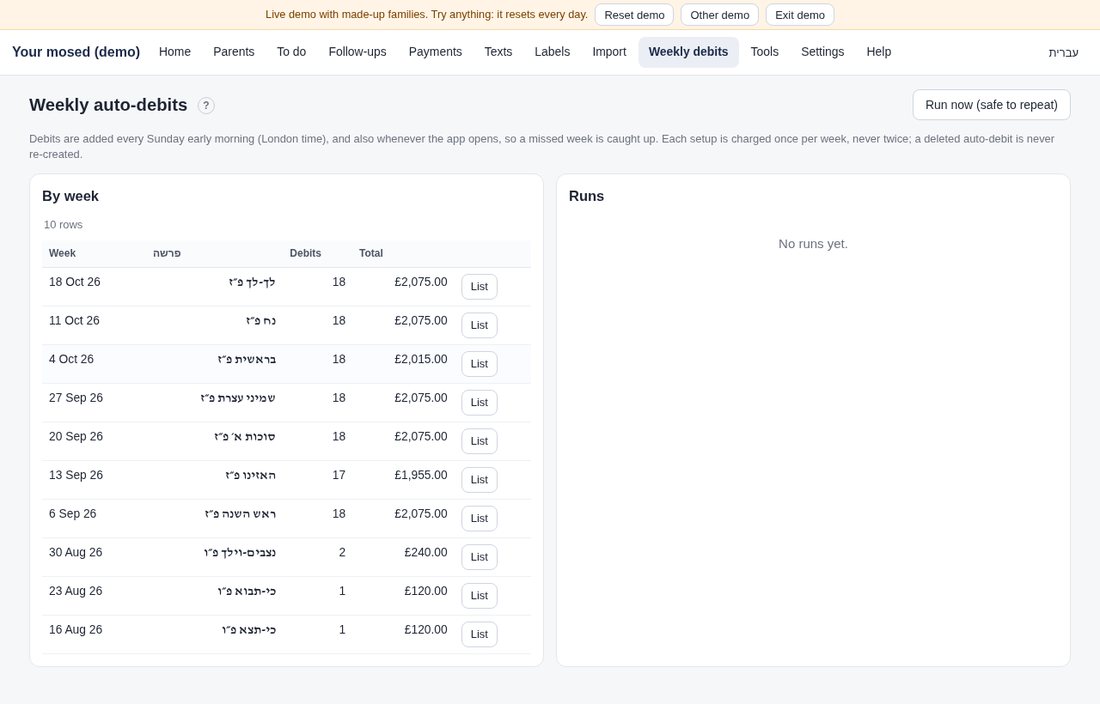
- The run happens every charge day early in the morning, and whenever the app is opened. It is safe to repeat and never double-charges.
- One-off charges (e.g. Bedek Habayis): open a parent › Add charge, or use Add a charge to everyone (Settings › Tools & data › Bulk actions), or select several on the Parents page › Add charge.
- Parents › Weekly debits shows each run and what it added.
Muting: you can mute one child (the Mute button on the child's card) or all the children (Mute at the top of the parent's page). Mute when you want to keep the record but stop charging, for example when a child has left or the client has paid in full. Muting works straight away: no auto-debit dated from that day on is added for that child (or, for a client, for any child and any auto-debit for all the children). The other children of a partly muted client carry on as before. Muting the whole client mutes all its children and also leaves the client out of the scheduled reminder texts; when every child is muted, the client counts as muted too. A muted child or client shows the badge Muted — auto-debits paused, and a partly muted client shows e.g. 1 of 2 children muted in the lists. The record, history and balance stay as they are, and search still finds them. When you unmute, auto-debits restart from that day, and you choose whether the muted weeks are charged (they are not, unless you tick the box).
The weekly auto-debit (Settings › Money › Charges & auto-debit)
On each charge day (Sunday for most mosdos) the auto-debit adds the coming week's charge for every child, at that child's own amount. Muted children and clients are skipped, and a week already charged by your old program (from the history import) is never charged again.
- Auto-debits are on: the main switch. While it is off, nothing is charged automatically, and you see OFF: nothing is charged automatically. When you switch it on, charging starts from the First charge date, and earlier weeks are never back-charged.
- Charge day and How often (weekly for the coming week, or monthly).
- Starting mid-week: Charge the whole week, Start from the next charge day, or Whole week if they start by… a day you choose (e.g. Tuesday). A child's enrolment date stays separate from their first charge: enrolled Friday 14 Aug with Start from the next charge day means the first charge is Sunday 16 Aug. Each auto-debit on the parent's page shows "first charge Sun 16 Aug".
- A start date in the past (v10.22): when a client's or a child's auto-debit starts before this week, you're asked Add N back-charges (£X total) from … to …? Add charges every missed charge day from the start date up to last week, exactly as the weekly run would have (same dates, amounts and descriptions; muted weeks, weeks your old program already charged and charges you deleted are skipped; saving again never doubles them). This also works for dates before the First charge date, because you chose it for that client. Don't add starts from this week's charge, and Add missed weeks… on the parent's page asks again later. Each child has its own Enrolled, Debit starts and optional Debit ends (on Add parent each child row has them; on a child's Edit they change that child's auto-debit).
- Set up from each child's amount… makes one auto-debit per child at the child's own weekly amount (or one for the client when its weekly amount isn't split between the children yet). It shows the list, the weekly total and the first charge date before anything is saved. Children who are muted, have left or have no amount are skipped.
Year start and yearly charges (Settings › Money › Charges & auto-debit)
- Your year start is a setting. For example, a mosed whose year starts on 1 Elul: billing starts on the Sunday nearest it: 1 Elul on Monday to Wednesday means the Sunday before, Thursday to Saturday the Sunday after (5786: 1 Elul was Friday 14 Aug 2026, so billing started Sunday 16 Aug). Settings › Money › Charges & auto-debit shows both dates for this year and next, and you can enter a different start Sunday for a year. Left — owing auto-debits stop after the last Sunday before the next year starts.
- Every weekly charge is on a Sunday, whatever day a child enrolled: a child enrolled on Friday 14 Aug is charged Sunday 16 Aug, 23 Aug and so on.
- Add the yearly Bedek Habayis charge: when ticked, from next year every enrolled child (all grades) gets one charge (e.g. Bedek Habayis 2027, £200 by default) on the first Sunday of the year. Leavers and muted children are skipped, and no child is charged twice for the same year. A child who joins later in the year isn't charged automatically: add it by hand if needed.
- It is never added for this year or a past year (no back-dating): the weekly run adds it on the first Sunday of the next year. Preview next year's charge… shows the date, the children who would be charged today and the total.
Monthly charge days, yearly and one-off charges, and the yearly grade-up
- Monthly auto-debits (Settings › Money › Charges & auto-debit › Monthly auto-debits are charged on): the first charge day of the month (as before), a date of the month (1 to 28, or the last day), or a Hebrew date (Rosh Chodesh or another day of the Hebrew month). The next dates show in both calendars. A change applies to the coming months only.
- Yearly and one-off charges (Settings › Money › Charges & auto-debit): Bedek Habayis is now one of these, and you can add others (a building fund, a trip). Each has a name, an amount per child, when (the start of each school year, a date every year, or once), and which grades (none ticked = all). Preview shows who it would be added for. When it's on, it's added by itself in the two weeks from its date, never for a date before you switched it on.
- Yearly grade-up (Settings › Organisation › Year & grades): choose where each grade goes (the next grade, another grade, leaves, or stays) and how many weeks before the date to remind you. A Yearly grade-up follow-up appears then, and nothing moves until you confirm there.
Payments and direct debits
What it's for: recording money in (payments, standing orders, direct debits, refunds).
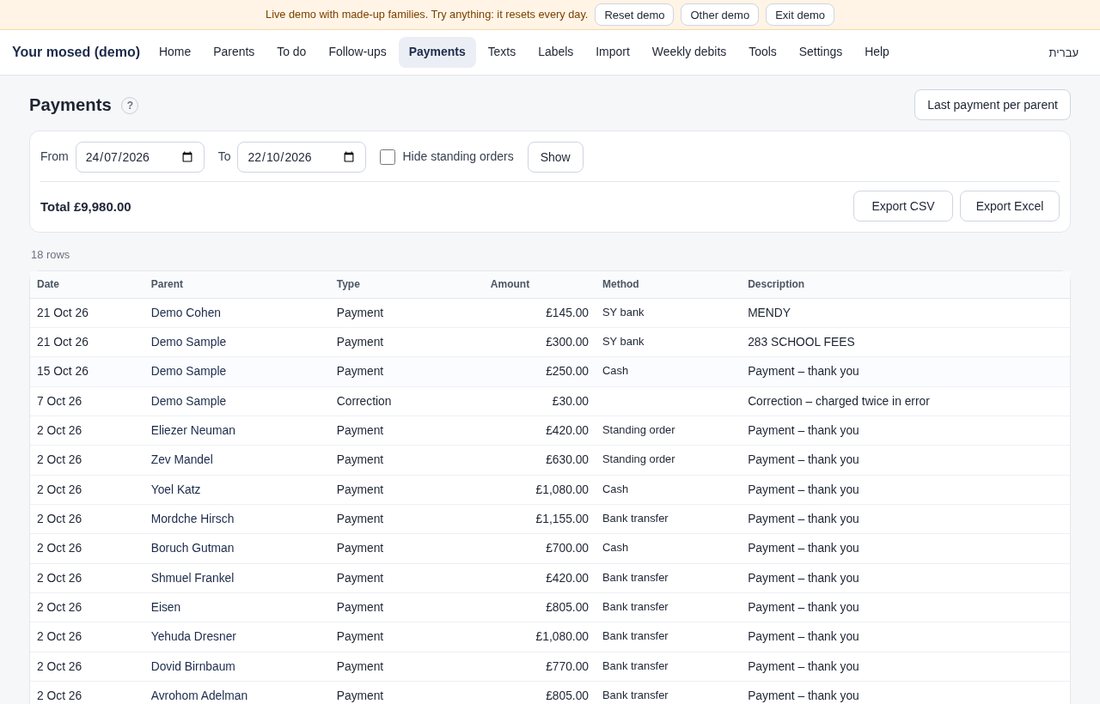
- One payment: open the parent › Add payment, or use Activity › Payments › Add a payment. Enter the amount, date, method and description.
- Bank files: Payments › Payments & bank files › upload a CSV or Excel file. Nothing is recorded straight away: the rows go to the Review queue first (see below). Match each row to a parent once and it's remembered next time.
- Standing orders / DD: record them as their own type so you can see them separately (and exclude them from "last payment" if you like).
- Mistakes: edit or delete any transaction. Deleted items can be restored, and every change is in the change log.
Paid into: where the money lands
What it's for: knowing which account each payment went into (your bank, a voucher or charity account, an online platform…), and a report of where all the money went.
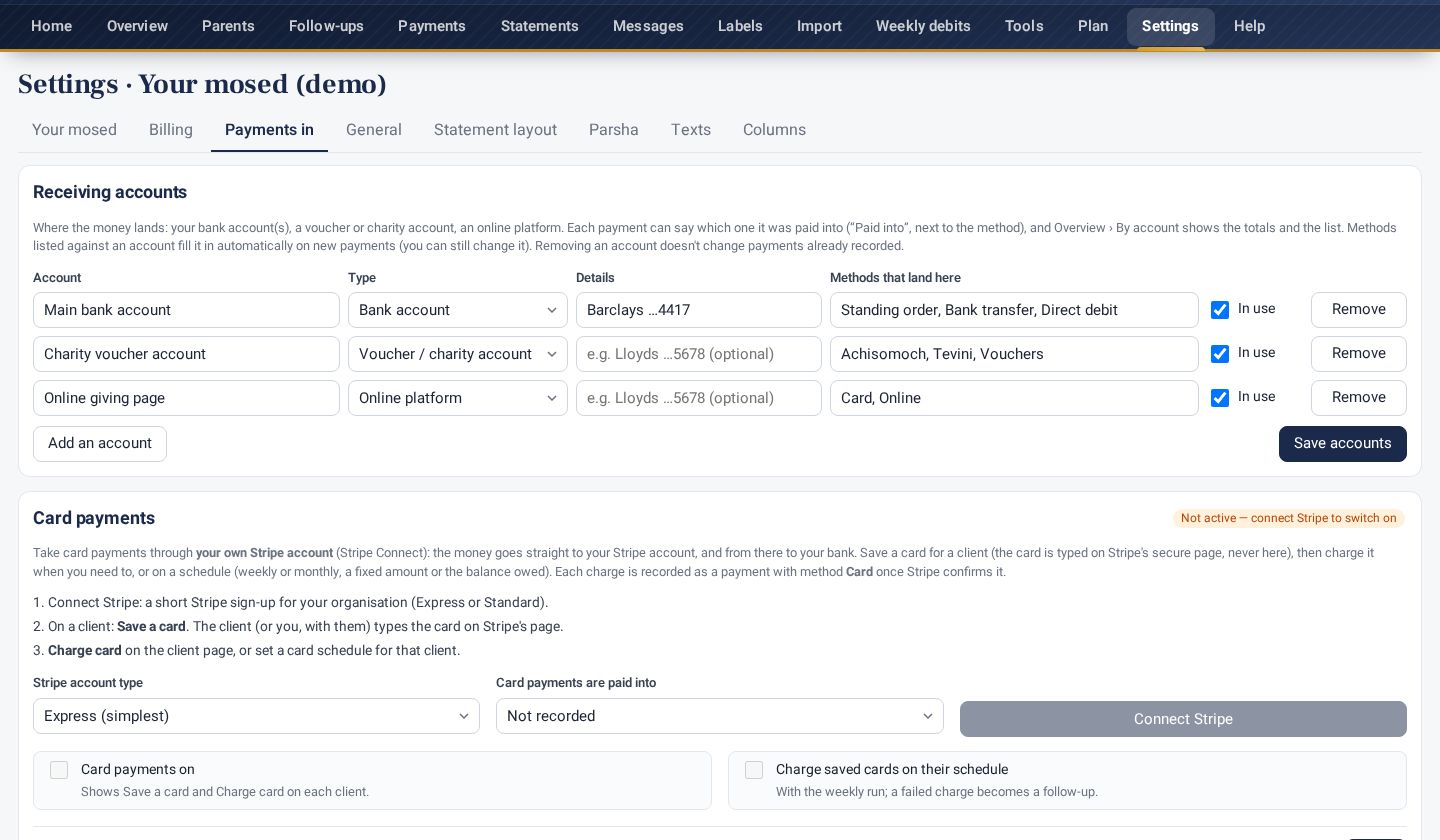
- Settings › Money › Payments in › Receiving accounts: add each account where money arrives: a name, the type, optional details (e.g. the last 4 digits) and the methods that land here (e.g. Standing order, Bank transfer). Untick In use for an old account; payments already recorded keep it.
- On each payment: Paid into sits next to the method. It fills in by itself from the method (you can change it). Bulk add, standing orders and recurring pledges have it too.
- Payments page: filter by Paid into, tick several payments and use Set "Paid into" to fill in older ones.
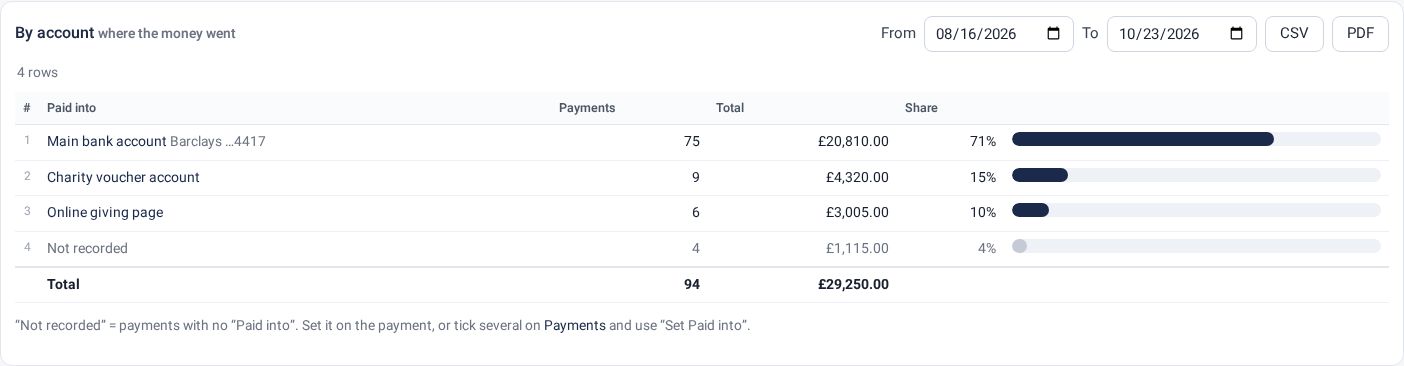
- Payments by receiving account (a Home tile: add it with Customise; Activity › Payments also filters by Paid into): the total and number of payments per account for any dates, with CSV (every payment, by account) and PDF (a summary, then each account's payments). Payments with nothing set show as Not recorded.
Childcare
Some schools receive part of a child's fees through childcare. It stays one account per family: childcare is simply where some of the money lands.
- Settings › Money › Payments in › Add Childcare (one click). This adds a Childcare receiving account, and Childcare as a payment method that lands there.
- On the child's auto-debit, fill in Of which childcare £: for example £100 a week, of which £60 is childcare. Every weekly charge then carries its childcare part. A standing order can be marked Paid into: Childcare too.
- Payments paid into Childcare count as childcare.
- Statements: on a client's statement choose Show: Childcare only, Everything except childcare or All. The Statements page has the same choice for statements in bulk (clients with nothing in that part are left out).
- Payment exports: on Activity › Payments, Paid into has Childcare only and Everything except childcare; Export CSV and Excel export what you see.
The childcare part and the rest always add up to the client's whole balance.
Card payments
Card payments now have their own section: see Card payments (Stripe) below.
Checking an import
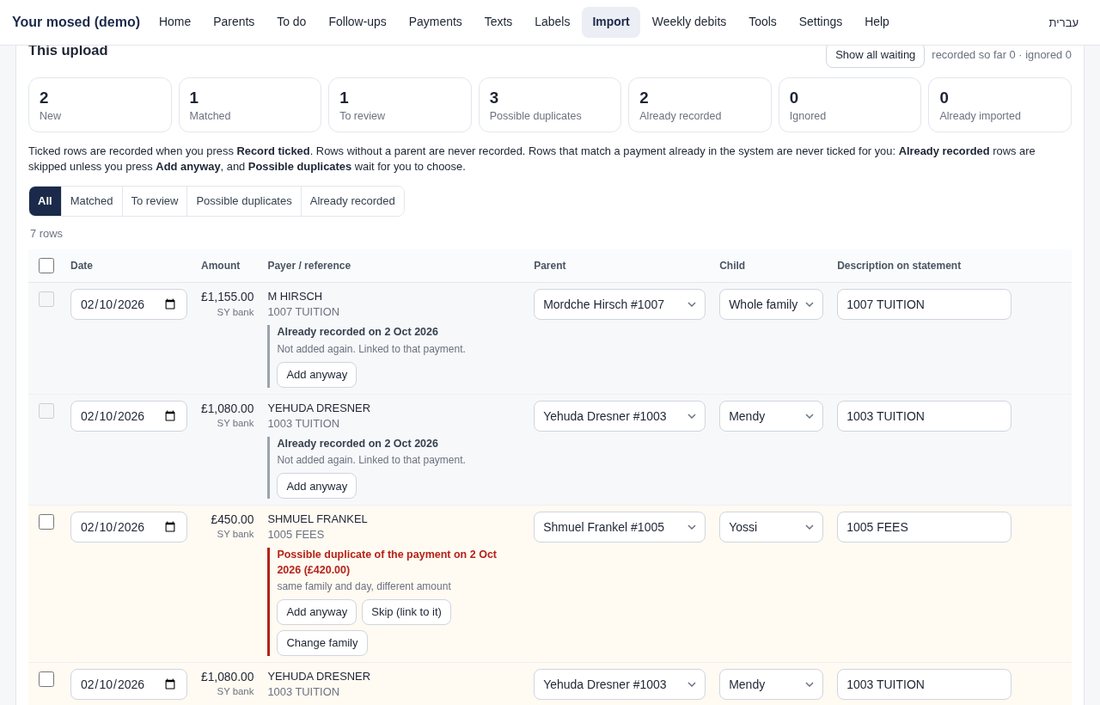
Every row in the file is checked against the payments already in the system (typed in by hand or imported before). The tiles at the top count each outcome, and the buttons above the table show one kind at a time.
- Matched (new): a sure match to one client, and nothing like it is recorded yet. Ticked for you: press Record ticked.
- To review: the client isn't certain. Choose the parent (or tap a suggestion), then tick the row. The payer comes first: the name (or, if there is none, the reference) on the bank line, because a company or a charity can pay for a client.
- Possible duplicate: something close is already recorded: the same payer and amount up to 3 days apart, or the same payer and day with a different amount. For older payments recorded without a payer, the client is used instead: the same client and amount up to 3 days apart, the same client and day with a different amount, or the same amount and day for a different or uncertain client. It says "Possible duplicate of the payment on (date) (£ amount)". Choose Add anyway, Skip (link to it) if it is that same payment, or Change client. Never ticked for you.
- Already recorded: the same payer, amount and date is already in the system, whichever client it is on (for older payments without a payer: the same client, amount and date). It is not added again, and it is linked to that payment. If you are sure it is a second payment, press Add anyway.
Two different payers paying the same amount on the same day are never duplicates, even for the same client. Every payment recorded from an import keeps its payer, so later imports can check it.
Previous payments from this payer: when the payer has paid before, the row shows their last 3 payments (client, date, amount), and that client is suggested. This helps with company payments that have no clear reference.
Also counted: Ignored (no date or amount, or money going out) and Already imported (rows from a file you uploaded before). One recorded payment can only match one row: if the file has the same payment twice and the system has it once, one row is Already recorded and the other goes to review.
Row counts: every table and list shows how many rows it has, just above it: "7 rows", or "Showing 3 of 7" when a filter, search, view or tab hides some.
History from the old program
When you bring over the full history (charges and payments) from the program you used before:
- Payments › Payments & bank files › choose the Payment history source and the file, and tick History from the old program.
- Move weekly charges to the Sunday of their week is ticked for you (the day is your charge day in Settings). Same amounts, new dates: a Thursday, Friday or Saturday charge moves forward to the Sunday, a Monday, Tuesday or Wednesday charge back to the Sunday before (or choose always back). Each moved row shows "moved from Thu 20 Aug", and statements follow the new dates.
- Press Match rows, then choose the client for any row that has none.
- Reconcile with the exported balances: for each client, the history (charges minus payments, up to the day the balances were exported) is compared with the balance brought over from the old program.
- Match: press Record the matching clients. The history replaces the opening balance, and the balance stays exactly the same.
- Don't match: nothing is recorded for that client until you choose: keep the exported balance (a "difference" line is added), use the history's total (the balance changes), or don't import that client's history. Why it may be points out a difference of exactly one week's charge.
- Entries dated after the export are added on top. Download the list gives the whole report as a CSV, and every step is in the change log.
- Notes from the old program are kept: the statement shows a short, tidy line (e.g. AHT, Cheque, Correction: 4 weeks), and on the parent's page the original note is shown word for word in small grey text under that line.
Payer types
Parents › Payer types. Every child is one of three types (a child takes the client's type unless it has its own):
- Standing order: pays by standing order. Each expected payment is checked; if it doesn't arrive, a Standing-order check appears on Follow-ups to allocate or chase.
- Reliable manual: pays on time, by hand. If a week passes with no payment, a gentle nudge appears on Follow-ups (at most once a week).
- Chase: needs chasing. While the client owes, Chase: owes money stays on Follow-ups.
The app suggests a type from each client's payments (for example "same £95 about every 7 days" → standing order). Suggestions are only suggestions: nothing happens until you confirm them, one by one or with Confirm the suggestions shown.
Follow-ups
What it's for: one page for everything you need to chase or fix: promises, standing orders to check, missed payments, calls, statements to send and details to correct. Follow-ups and To do are now one list.
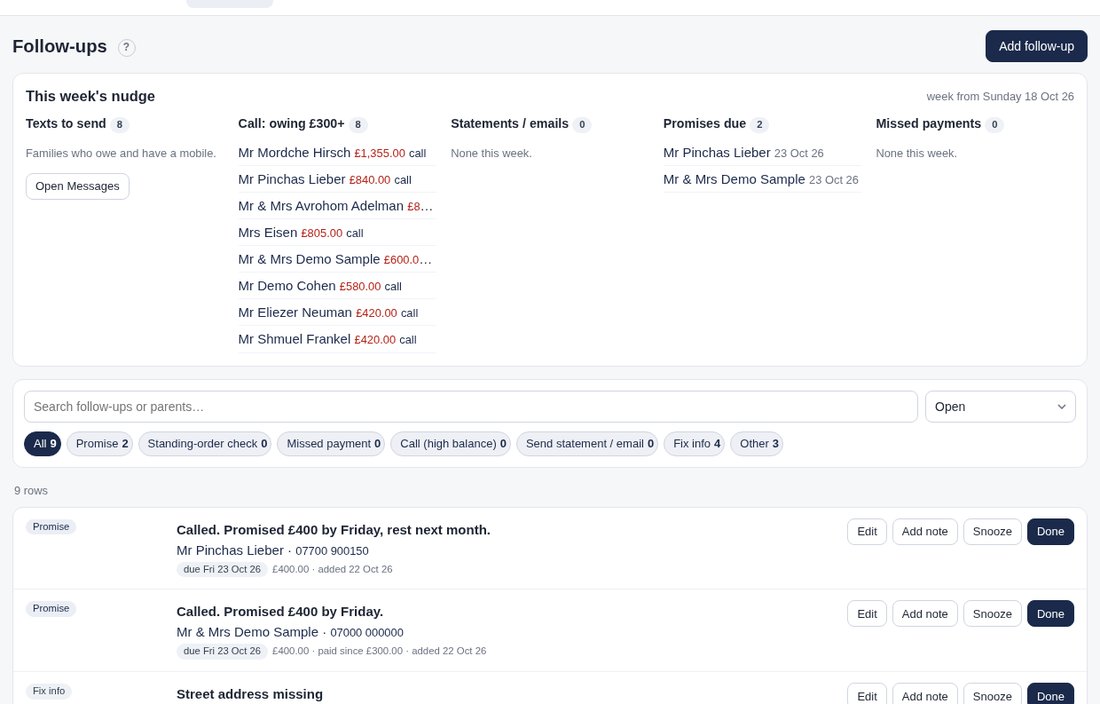
- Categories: Promise, Standing-order check, Missed payment, Call (high balance), Send statement / email, Fix info and Other. Tap a category to see only those items.
- Each item has Edit (title, category, date, amount, details), Add note, Snooze (+1 day, +1 week, or pick a date) and Done. The same list and buttons are at the top of each parent's page.
- Automatic items appear by themselves (a weekly amount to split, a missing street or child name, no valid mobile) and close themselves when fixed.
- Standing orders: on a parent's Children & auto-debits tab, add each standing order with its amount and expected day (weekly or monthly). Nothing is ever recorded for you. If no payment of that amount is recorded within 3 days of the expected day (change the number of days in Settings › Money › Payments in), a Standing-order check appears. It closes itself once the payment is recorded.
- This week's nudge (top of the page, from your nudge day, Sunday): texts to send, clients owing more than your Who to call amount (Settings › Organisation › Preferences), statements for clients who prefer email (set on the parent) or asked for one, promises due this week, and missed payments.
- Done items are hidden but kept: choose Done or All to see them.
The year's pot (on Home)
What it's for: the year's figures at the bottom of Home (there's no separate Overview page any more): how much is supposed to be raised, how much has been charged, how much has actually come in, and what is outstanding. It isn't bookkeeping: there are no other income or expenses in it.
- Target to raise: by default the expected total, which is what has been charged this year plus the auto-debits and recurring pledges already set up to the year end. Owners can press Set a target to type their own figure for the year.
- Charged so far, Actually collected (real payments, not opening balances or corrections), Outstanding (charged this year, not yet paid) and what is owed now across all years.
- Progress bars to the target, a By category table (fees, pledges, Bedek Habayis and other charges: charged so far, still to come, expected) and a Through the year chart (hover for figures, click a week to see its payments).
- Use ‹ › at the top to see another school year.
Payment arrangement (on each client, Children & auto-debits): the payer type for the client and for each child, the standing orders (how often, amount, day, the bank account it comes into and the reference on the bank line) and recurring pledges. On each standing order's expected day an Allocate standing order follow-up appears and closes by itself once a payment of that amount is recorded (within 3 days). When you import bank lines, a line with the standing order's amount and reference is suggested for that client.
Recurring pledges: for example £100 a month on Rosh Chodesh, or £50 a week. Monthly on a date, monthly on a Hebrew date (Rosh Chodesh or another day), or weekly (every 1 to 8 weeks), from a start date to an end date or open-ended. Each instalment is added as a pledge on its date (never for past dates), with a To collect follow-up until it's marked paid on the Pledges page. The next dates show in both calendars as you fill it in.
Customise Home (Pro)
Press Customise at the top of Home. Each tile gets a small bar:
- Drag a tile to move it (on a phone, use ↑ and ↓).
- Change ▾ chooses what the tile shows: owing the most, latest payments, follow-ups, the charts, the target to raise, and more. A tile that's already on the page swaps places.
- Size ▾: small, medium, half, large or full width. Tiles in a row are always the same height.
- ✕ removes a tile; + Add a tile brings one back; Reset to default restores the standard layout.
Press Done when finished. The layout is saved for your login straight away. This is part of the Pro plan.
Activity
Activity › Recent activity lists everything that changed in this organisation, newest first: payments, charges, notes and follow-ups, edits to clients, imports, sign-ins and settings, each with who did it and when. Changes made by an assistant through the API show as via API: and the key's name. The buttons at the top show one kind at a time, and the search box finds a client. Nothing is changed from here: it's the record.
Pledges (shuls)
What it's for: aliyos, kibbudim, nedarim, appeals, seats and plaques. They go onto the balance and statements like any charge.
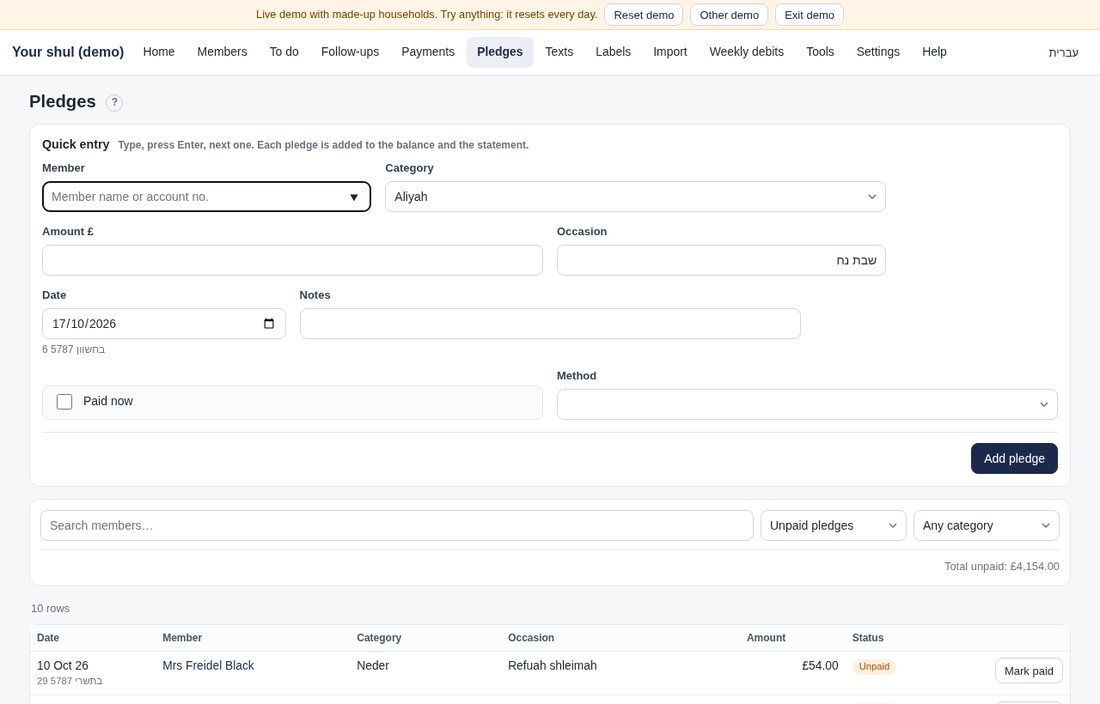
- Turn on Use pledges in Settings › Organisation › Details (it is on automatically for shuls). Edit the categories if you like.
- Open Pledges. In Quick entry, type a name, pick a category, and enter the amount and occasion (e.g. "שבת בראשית – שישי"). Press Enter, and the form is ready for the next one, so a gabbai can enter Shabbos's pledges in a couple of minutes.
- Tick Paid now if it was paid on the spot. Otherwise press Mark paid later (this records the payment).
- Filter by unpaid, paid or category. The Hebrew date shows beside each date.
Statements
What it's for: a clear statement of account for any period, with your logo, Hebrew dates and parsha names.
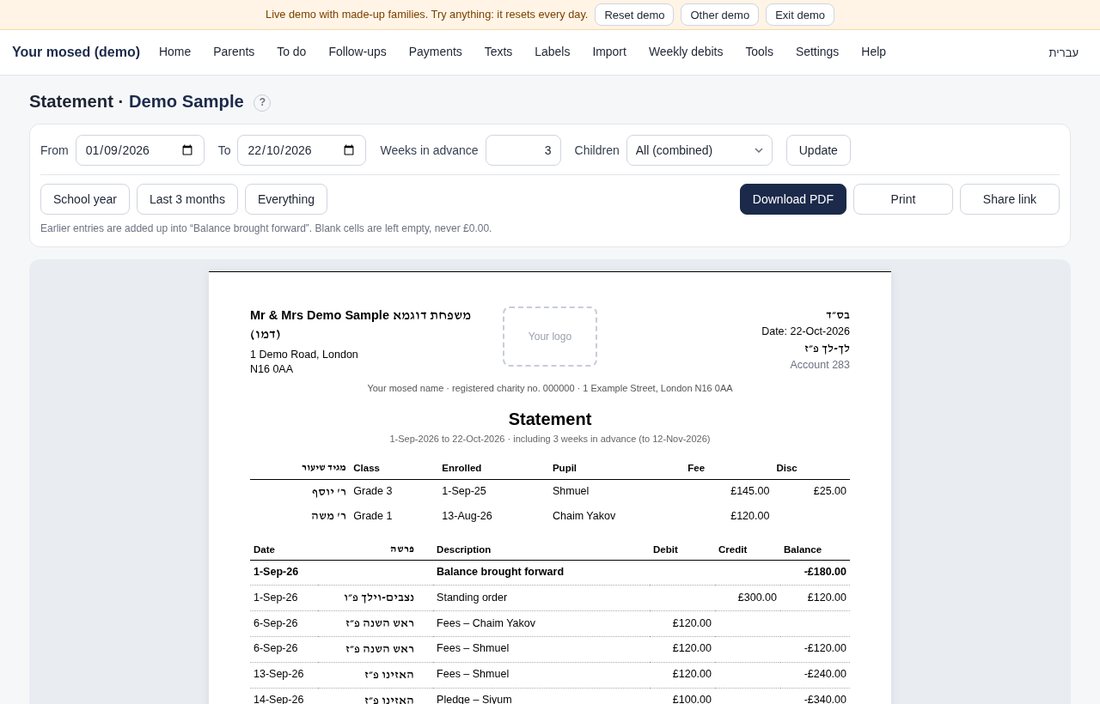
- Open a parent › Statement. Choose the period (earlier entries are added up into "Balance brought forward").
- Download PDF, Print, or create a Share link to send by WhatsApp or text.
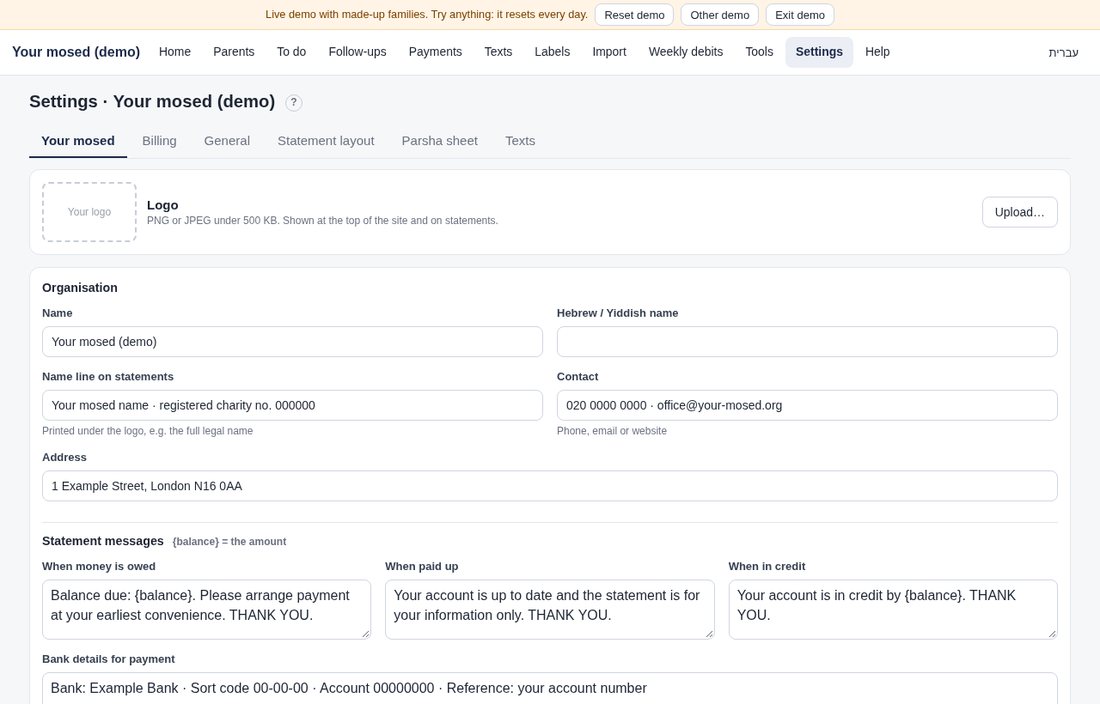
- Settings › Statements & messages › Statement layout sets the heading, date and parsha columns, small print, the statement messages (when money is owed, when paid up, when in credit) and the bank details. Settings › Organisation › Details sets the name and address.
Tip: the message at the bottom changes automatically when someone owes, is paid up, or is in credit.
Hebrew dates: the app can also show the Hebrew date (e.g. ג׳ אלול) beside every date on statements, the ledger, the weekly runs and Home. It is off unless you switch on Show the Hebrew date in Settings › Money › Charges & auto-debit. Parsha names are worked out from the Hebrew calendar for any year (outside Eretz Yisroel: double parshiyos and yom tov weeks included), so no sheet is needed; you can still use your own wording for particular weeks: Settings › Statements & messages › Statement layout › Use your own parsha wording. Hebrew dates come from the built-in Hebrew calendar. The parsha column can be turned off in the same place.
Weekly fees and discounts (v10.23): the weekly fees of all the children are one line per week on the family's statement (Fees – Z, v, with the total); the table at the top shows each child's Fee and Disc. When a child's weekly amount is below the Default weekly amount (Settings › Organisation › Preferences), the statement shows the default as the Fee and the difference as the Disc; a discount you typed on the child (Edit › Discount £) shows as well. Only the statement changes: each child is still charged its own amount every week, and mutes, one-child statements and back-charges work per child as before. Settings › Statements & messages › Statement layout has Weekly fees on the statement (One line per family / One line per child) and Show a weekly amount below the standard as a discount (on unless you switch it off). Add parent says it as you type: £20.00 below the standard £145.00: the statement shows Fee £145.00, Disc £20.00.
One child only: choose a child at the top of the statement (or on the client page). You see that child's own charges and payments, plus the client lines that can't be put on one child, marked All children or All children (old program) (the old program charged the client as a whole, not each child). On the client's full statement, each child's charge shows the child's name (with one line per family, the week's line lists the children). School year runs from the start of your billing year (for a mosed: 1 Elul, billed from the nearest Sunday). The Hebrew date column is off unless you switch Show the Hebrew date on in Settings › Money › Charges & auto-debit.
Statements in bulk
What it's for: every client's statement at once, e.g. at the end of a term, for the accountant, or to print and hand out. Nothing is sent from here.
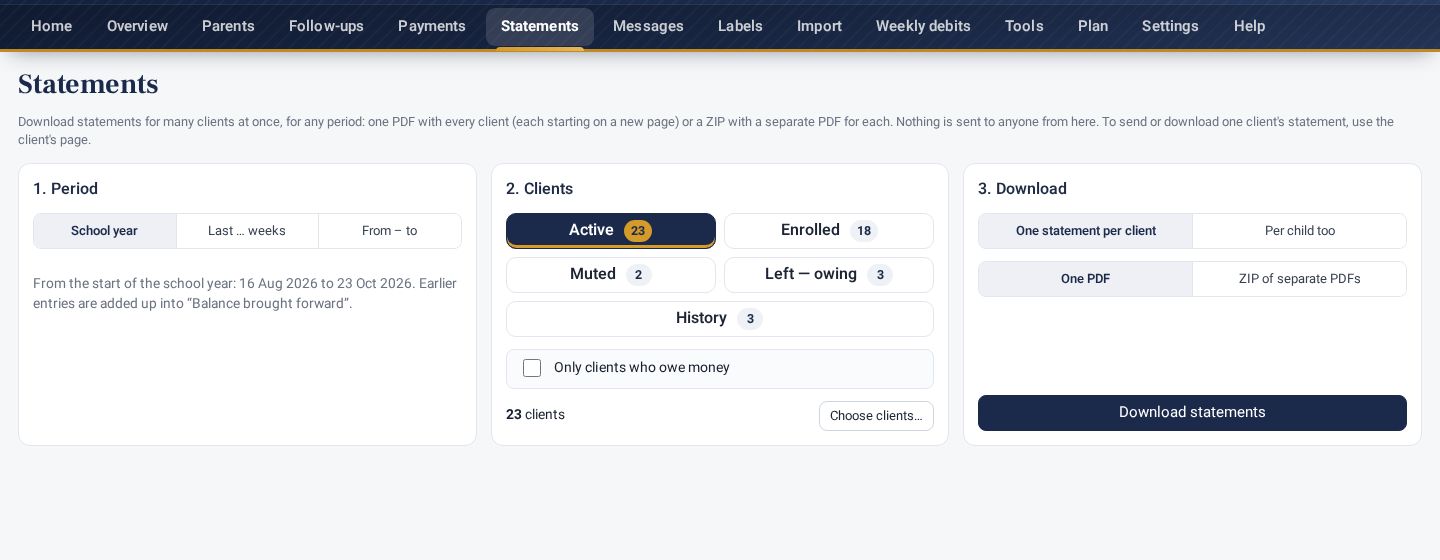
- Open Parents › Statements.
- Period: School year (from the start of your year to today), Last … weeks, or From – to dates. Earlier entries are added up into "Balance brought forward", as on a single statement.
- Clients: the same status chips as Parents (Active, Enrolled, Muted, Left — owing, History; combine them), and Only clients who owe money if you like. Choose clients… lets you tick exactly which ones.
- Download: One statement per client, or Per child too (a client with several children also gets one statement for each child). Then One PDF (every client starts on a new page) or a ZIP of separate PDFs, one file per client, named with the client's name, ref and date.
Your choices are remembered for next time.
Address labels
What it's for: printing address labels on standard sticky-label sheets.
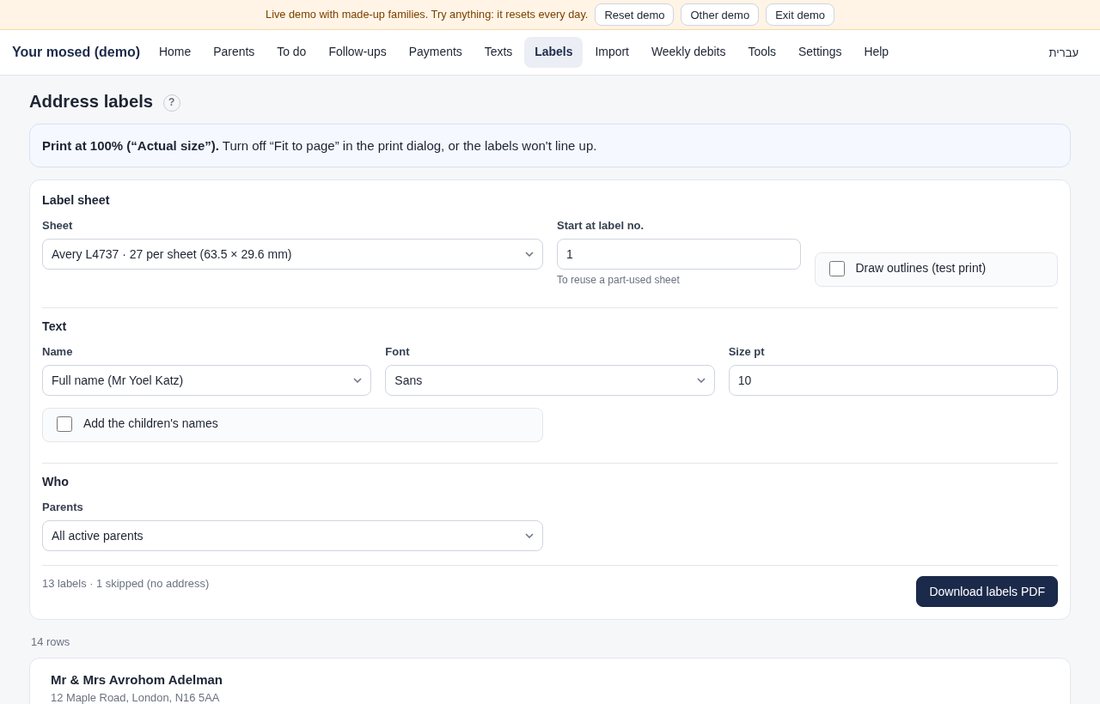
- Open Labels. Choose the sheet: Avery L4737 (27 per sheet, the default), L7160, L7161, L7163, L7651, or a custom size.
- Choose the name format (full name, Mr & Mrs + surname, title + surname, surname only, or custom), the font and size, and whether to add the children's names.
- Choose who: all active, everyone who owes, everyone, or tick them yourself. You can also select parents on the Parents page and press Labels.
- Using a part-used sheet? Set Start at label no.
- Press Download labels PDF. Print at 100% / Actual size, with Fit to page turned off.
Tip: do a test print on plain paper with Draw outlines switched on, and hold it against a label sheet.
Messages: texts and emails
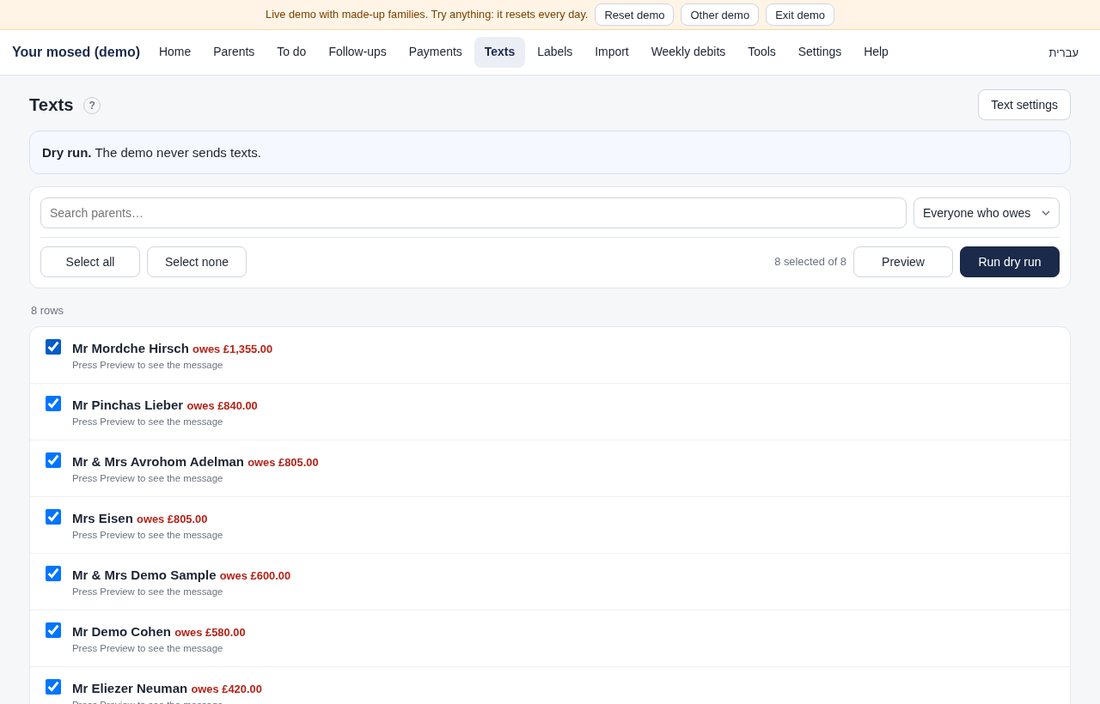
One page for texts and emails. Messages (it used to be Texts) has two tabs: Texts for balance texts, and Emails for statements by email (see Email below). Each has its own preview, confirm and log. Texts are sent once your admin switches them on in Settings › Statements & messages › Texts, emails once they're switched on in Settings › Statements & messages › Email. Until then, every send is logged as a dry run, and the status line at the top says so.
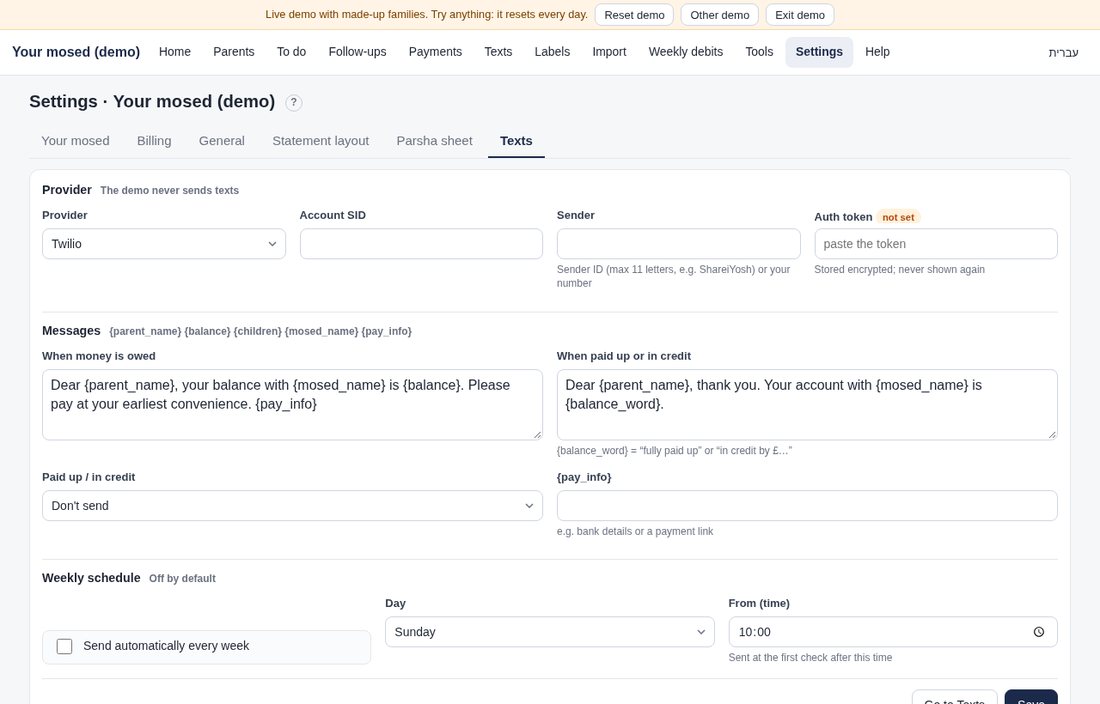
What it's for: a short text to each client with their balance, from your organisation's own name, with a number they can call or text back. Since v10.11 texts are real: one Twilio account on the Billing for Mosdos server sends them for every organisation, so you don't need a Twilio account or any key. They're off until your admin switches them on.
Set it up (admins): Settings › Statements & messages › Texts
- Sender name: what the phone shows instead of a number, e.g. ABC Balance. At most 11 characters: letters, numbers, spaces and . - _ & only, with at least one letter. General words such as Billing, Bill, Info, SMS, Text, Alert, Payment, Account or Admin are blocked by the UK phone networks, so the page refuses them. Use your organisation's own name.
- Call/text-back number: your real UK number. Nobody can reply to a name, so this number is in the message for replies.
- Organisation name in texts: your full name (blank = the name at the top of the app).
- Wording: the default, for every organisation, is Hi, your {org} balance is £{balance}. Please arrange payment. Questions? Call or text {callback}. You can change it; click {name} {org} {balance} {callback} to add them. Under the box you see the characters, how many texts it makes and the cost per person, and a phone shows exactly how it will look.
- Tick Send balance texts for this organisation and press Save.
What it costs: about 4.4p a text (US$0.056, Twilio's UK price; an estimate). Up to 160 characters in plain English is 1 text. Longer than that, or with any Hebrew or Yiddish letter or emoji, it counts as 2–3 texts (2–3 times the cost); the page warns you when that happens.
Monthly allowance and top-ups: your plan includes texts up to an amount of money each calendar month (UK time; it starts again on the 1st), shared by all your organisations: Standard £10.00, Pro £25.00. Starter doesn't include texts. It's counted in money, not in number of texts, so a message that makes 2 texts uses twice as much. Settings › Statements & messages › Texts shows what's used this month, the allowance and your credit.
- When the allowance is used up, sending stops. Preview and send blocks Confirm, says how much is missing, and offers Top up, or sending to fewer people (the first ones that fit).
- Top up (admins only): choose £5, £10 or £25 and pay by card on Stripe's secure page. The credit appears as soon as Stripe confirms the payment.
- Credit is used only after the month's allowance, never expires and carries over to next month. Each top-up is listed on Plan & billing with what was paid.
- The cost is an estimate (4.4p a part), and the check uses the same estimate. Dry runs don't use any allowance.
Send: open Messages › Texts, choose who (everyone who owes, everyone, or the clients you ticked on the Parents page) and press Preview and send. You see how many will get a text, who is skipped and why (no UK mobile, No texts ticked, nothing owed, already texted today), an example message, the number of texts and the estimated cost. Nothing goes until you press Confirm. Each person gets at most one text from each send.
Send anyway (v10.24): a client who got a real text in the last 24 hours is held back by default, so a second send by mistake texts nobody twice. The preview lists them under Texted in the last 24 hours (with the time). To text someone again on purpose, tick Send anyway next to them, or Send anyway to all N: the counts, cost and allowance check update straight away, and the confirm popup says how many are being sent again. Anyone allowed to send texts can use it. The month's allowance and texts on/off still apply, No texts and missing mobiles are still skipped, and each one is written in the activity log (Balance text sent again within 24 hours (Send anyway)). In the demo, a dry run counts as a text, so you can try it there.
Opt-out: if someone asks not to get texts, open the client, Edit, and tick No texts. Texts go to the UK mobile (07…) in the client's Mobile / phone field.
The log (under the list) shows each send with its totals, and for each person the date, a partly hidden number, the status (Queued, Sent, Delivered, Not delivered or Failed, with the reason), the number of texts and the estimated cost.
Automatic send: optional and off by default: every week, every 2 weeks (on a weekday you choose) or every month (on a day from the 1st to the 28th, or the last day), from the time you choose; Next send shows the date. Each time it goes to everyone who owes (not muted), with the same checks and log. If it would go over the month's allowance and credit, it sends nothing, and a notice on Messages › Texts says so, with Top up.
Dry run: while texts are switched off (and always in the demo and on the TEST site), the same steps run as a dry run: you see and log everything, nothing is sent.
What it's for: statements and balance reminders by email, in your organisation's name, with each client's statement PDF attached. Email is part of the Standard and Pro plans (Starter shows it locked). It's off until your admin switches it on; until then every send is a dry run.
Set it up (admins): Settings › Statements & messages › Email
- From name: what the inbox shows as the sender. Blank = your organisation's name. The address itself is always statements@mail.billingformosdos.com (it can't be changed), shown as Your Name <statements@mail.billingformosdos.com>.
- Reply-To address: your organisation's own email (for example your office Gmail). Replies go straight there. It's needed before email can be switched on.
- Message: a subject and a message, with {org} {name} {balance} {date} to click in. English is always there; switch to עברית or ייִדיש to write a Hebrew or Yiddish version (those emails are laid out right to left). Default wording puts the standard text back. The preview on the right shows exactly how it will look, with the navy and gold heading.
- Signature (optional), the usual language, and whether to skip clients who owe nothing and attach the statement PDF (both can be changed on each send).
- Tick Send emails for this organisation and press Save.
Send: open Messages › Email. Filter the clients (status, payer type, balance, grade), tick them, choose the statement period (your default period, the school year, the last 3 months, everything, or your own dates) and the language, and press Preview and send. You see how many will get an email, who is skipped and why (no email address, No emails ticked, an address that bounced, nothing owed), how many more can go today, and the first email exactly as it will arrive. Nothing goes until you press Confirm. The page then makes each client's statement PDF (the same as Download PDF) and sends the emails in small groups; keep it open until it says it's done.
One client: on a client's page, or on their statement, press Email statement: the same preview and confirm for just that client (on the statement page, with the dates shown there).
Never twice: each send is kept on the server, and each client gets it at most once, even if you press Confirm twice or the connection drops. If a send stops part-way (closed page, or the day's limit reached), Messages › Email shows Unfinished send with Continue, which sends only to the rest.
Limits: the platform can send a set number of emails a day and a month (shared by all organisations). If the limit is reached, sending stops with a clear message; Continue the next day.
Opt-out and bounces: tick No emails on a client (Edit details) and they're never emailed. Every email has an unsubscribe link; if they use it, No emails is ticked for them and it shows in Recent activity. If an email bounces, the address is marked and skipped until you type a new one; if someone marks it as spam, No emails is ticked.
The log (under the list) shows each send with its totals and, for each person, the date, a partly hidden address, the subject, the attachment and the status (Sent, Delivered, Bounced, Marked as spam, Failed or Dry run).
Automatic email: optional and off by default: every week, every 2 weeks or every month, like texts, within the daily and monthly email limits; Next send shows the date. Each time, everyone who owes (not muted) gets a balance email with a link to view their statement (valid 30 days; no PDF, because no browser is making one).
Settings
Settings has five sections, each with its own row of tabs:
- Organisation: Setup (the checklist for a new organisation), Details (name, Hebrew name, logo, address, contact, the organisation type, the words used on screen, and pledges), Preferences (mid-week starts, grades, auto-mute when paid, "who to call" rules and payment methods) and Year & grades (the yearly grade-up).
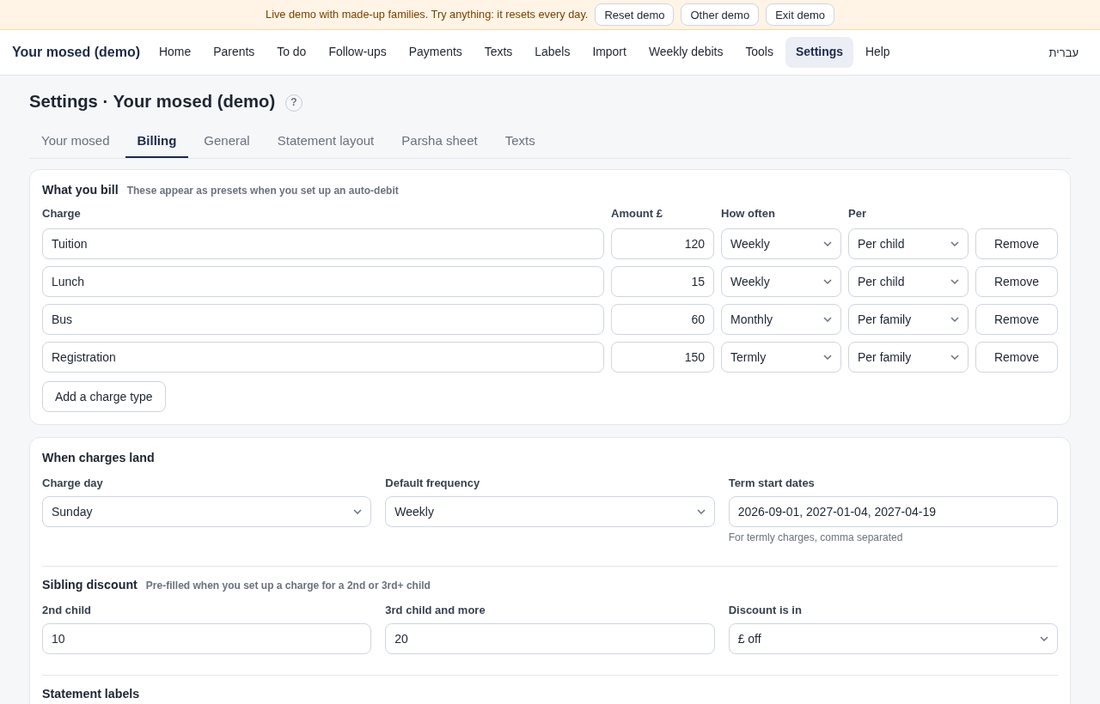
- Money: Charges & auto-debit (charge types, charge day, term dates, sibling discount, yearly charges and the weekly auto-debit) and Payments in (where the money lands, standing-order checks, card payments).
- Statements & messages: Statement layout (heading, columns, small print, statement messages and bank details), Texts and Email (both off until set up).
- People & access: Users & logins, Organisations, My profile and Privacy.
- Tools & data: Bulk actions, Export, Names and Columns (your Parents table layout).
The parsha and the Hebrew date are automatic. They are worked out from the Hebrew calendar for every week, so there's nothing to fill in. For your own wording on particular weeks, open Statement layout › Use your own parsha wording and upload a sheet.
First name and surname. Each client has a Title, First name and Surname (Add parent and Edit details). The Parents list sorts by surname, then first name; the Sort menu also offers first name, account number and owing most first. Labels use the surname for "Mr & Mrs + surname" and "Title + surname". Clients that came in with one full name can be split in one go: Settings › Tools & data › Names suggests the last word as the surname (and a leading Mr / Mrs as the title). Correct any that are wrong, tick the rows that are right and press Save the ticked names. Nothing changes until you do.
API tokens (for a connected assistant) are created by the platform admin only. An organisation that already has a token sees it under Tools & data › Advanced and can revoke it there.
Setting up a new organisation
Settings › Organisation › Setup is a checklist for a new organisation. Each step shows Done or To do; open it to fill it in, or follow its button to the full settings tab.
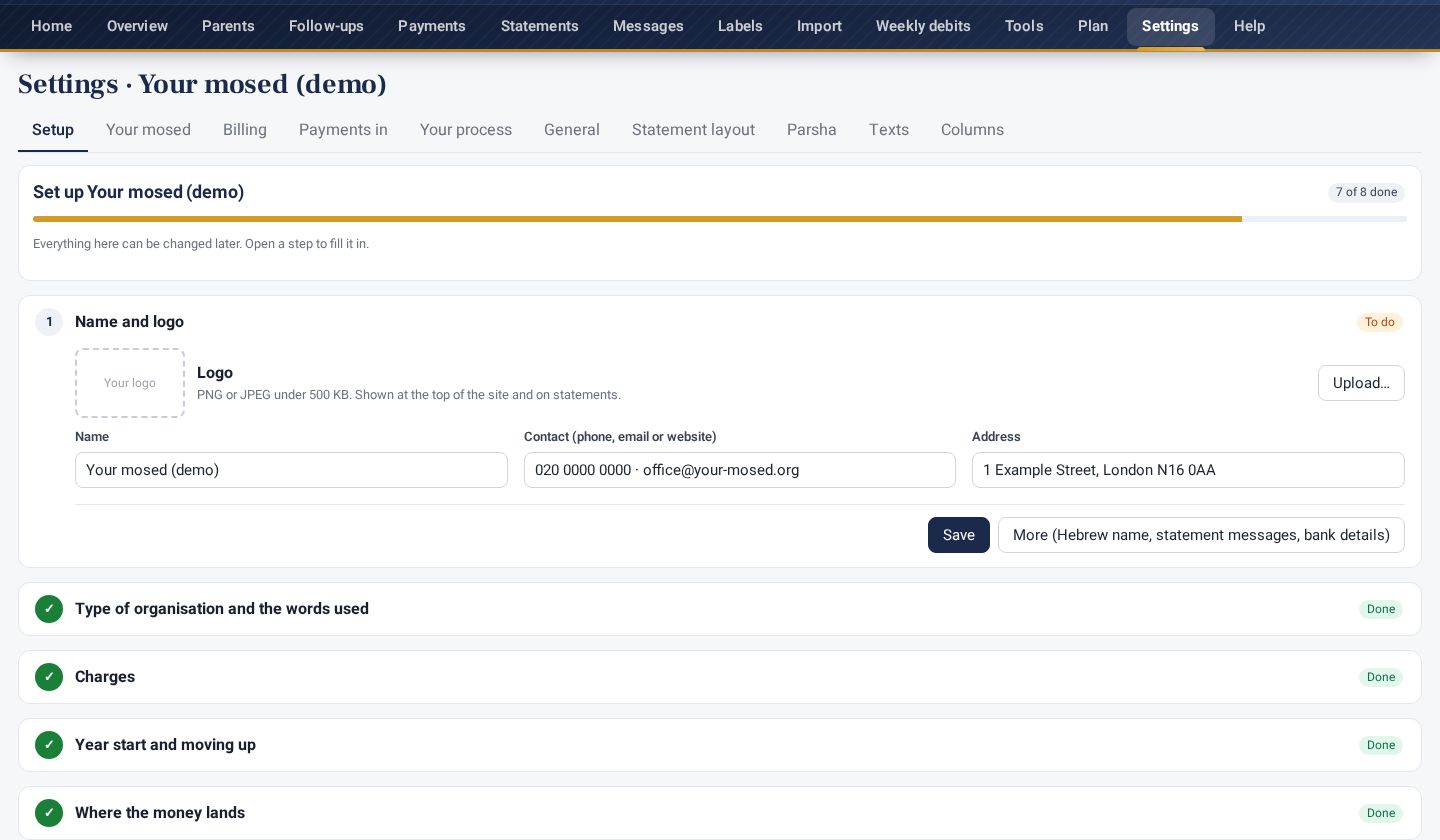
- Name and logo: the logo is used at the top of the site and on statements and PDFs.
- Type of organisation and the words used (Parents/Children, Members/Family members…).
- Charges: the standard amount, how often, the charge day and the first charge date. Each client can still have their own amount and frequency (weekly, monthly, termly or yearly) on their page.
- Year start and moving up: when the year starts (1 Elul, or your own date) and whether children move up together on one date or each on their own anniversary.
- Where the money lands (receiving accounts), Statements, Describe your process and Import your clients.
Your process
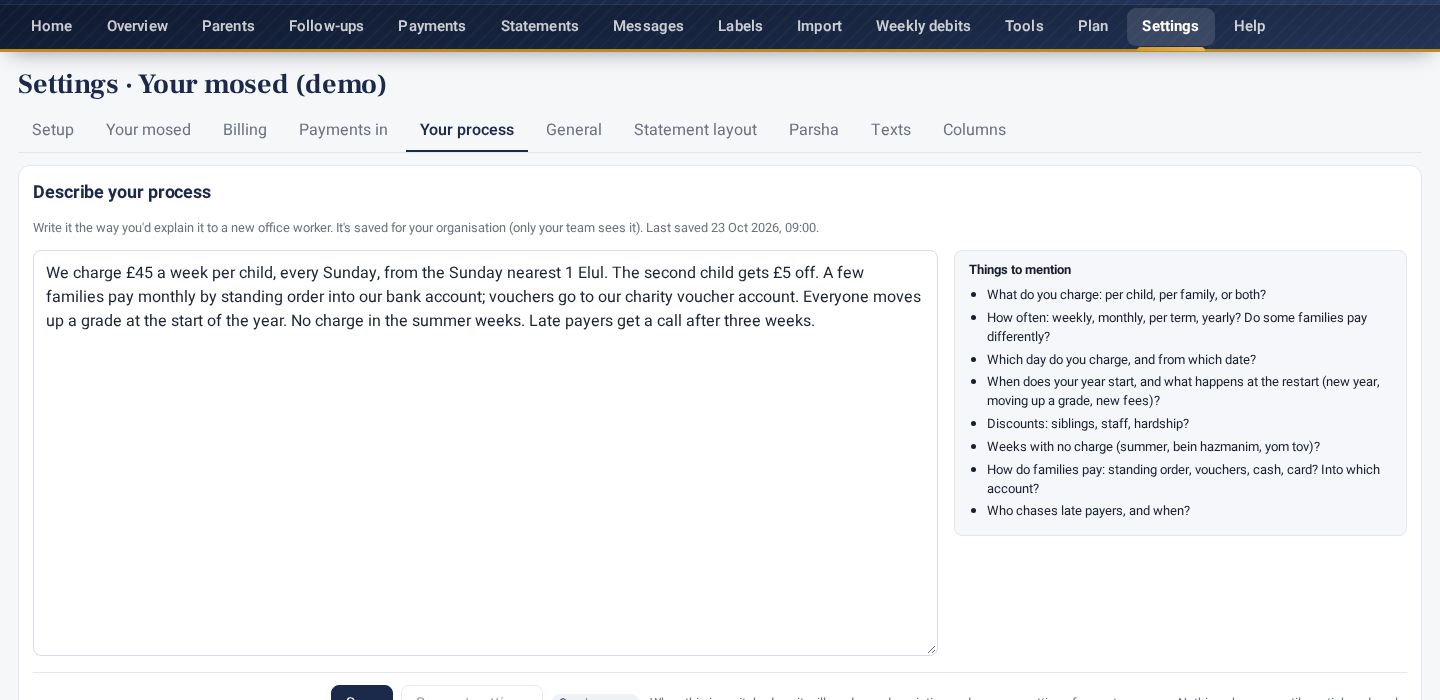
This page shows only once Suggest settings is switched on for your plan.
Your process (under Settings › Tools & data, once it's switched on for your organisation) is a box to describe how you bill, in your own words: what you charge, how often, when the year starts and restarts, discounts, breaks, how families pay. It's saved for your organisation and only your team sees it. Suggest settings is built but not switched on yet: when it is, it will read your description and propose settings as a list you tick and apply. Nothing changes until you do.
Plan and accounts
Plan (owners) shows your plan, what it includes and this month's texts and emails. An organisation can have several accounts (for example a mosed and its second building); one login switches between them at the top. Split into a new account moves chosen clients, with their whole history, into a new account beside this one; balances don't change and a split can be undone. Going over a plan limit only shows an "Upgrade needed" note: nothing is deleted, hidden or locked.
The three plans. Starter has the full billing system: clients of every kind, recurring charges, statements with the parsha, payments and imports, bulk add, follow-ups, payer types, files, charts, leavers and History, the school year, pledges, and staff and read-only logins. Standard adds balance texts (£10.00 of texts a month included; Pro £25.00; top-ups available), statements and reminders by email, labels, linked accounts and Split, and several organisations under one login, plus card payments from parents through your own Stripe account. Pro is everything in Standard plus API access to connect your own tools, a Home page you arrange, and work tailored to your organisation: custom features and reports, setup and data migration done for you, and priority support. On the Plan page each feature shows All plans, Standard or Pro. Prices: Starter £29 a month, Standard £49, Pro £89; a year costs 10 months (£290, £490, £890: 2 months free).
Users and accounts
- Users (Settings › People & access › Users & logins): invite people as Admin (everything), Staff (no settings) or Read-only. They get a one-time link to choose their own password. Forgot a password? The admin presses Reset password next to the person: a one-time link, or a temporary password shown once that they change at their next sign-in. Nothing is emailed.
- My login: change your name, email or password, and link your phone.
- Several organisations: one login can belong to more than one organisation. Switch between them at the top right.
- API keys (for your own tools or assistant, Pro): an admin creates them in Settings › People & access › API access (see API access). Items added with a key are marked as added through an API key.
- Every change is recorded in Activity › Recent activity, showing who made it and when.
Reports and exports
What it's for: getting your data out, for Excel, your accountant or a backup.
- Parents page: CSV or Excel exports the current view, with its columns and filters. Use Export in the bulk bar to export only the rows you selected.
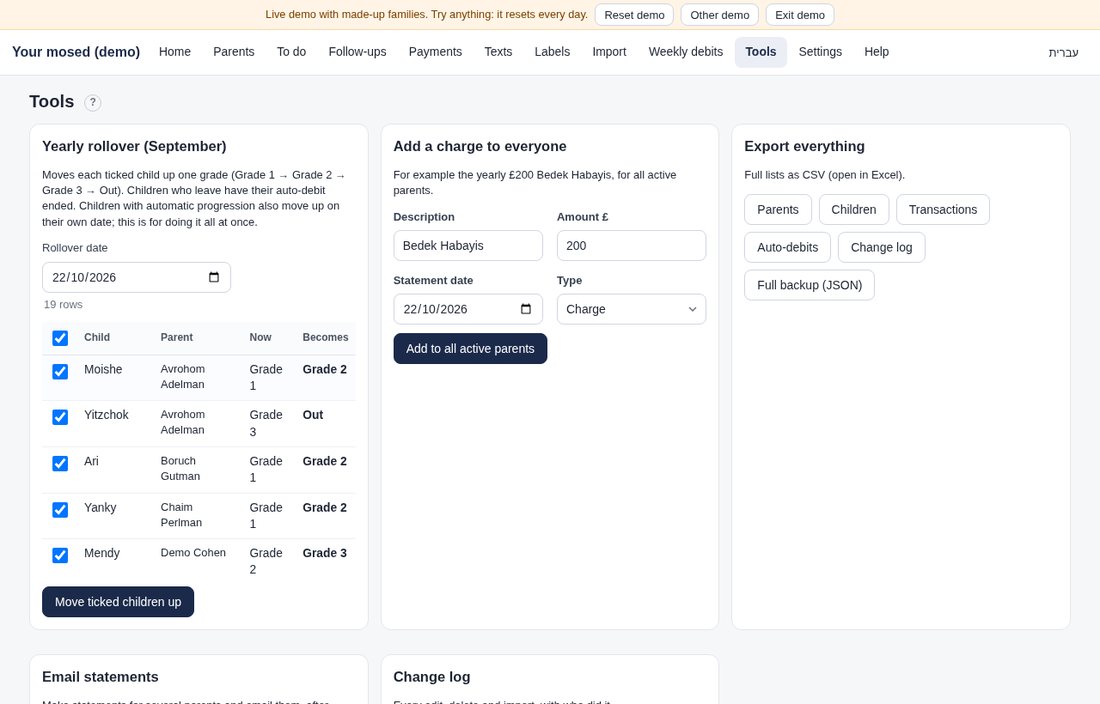
- Settings › Tools & data › Export: full lists as CSV (parents, children, transactions, auto-debits, the change log) and a full backup (JSON). Add a charge to everyone is under Settings › Tools & data › Bulk actions.
- Activity › Recent activity: every payment, charge, note, edit, import and sign-in, with who did it and when. Filter by type, search, or export it as CSV.
- Home: totals owed, this week's auto-debits, the top balances and recent payments.
API access (Pro)
Your own tools or assistant can work in your account with a key you give them. Nothing runs on our side: the assistant does the understanding, and it asks you before any change.
- Go to Settings › People & access › API access (an admin of a Pro organisation).
- Create a key: give it a name (for example Office assistant), choose Read only (look things up) or Read and edit (also add and change), and All organisations or just one.
- The key is shown once. Press Copy for your assistant (or Download .txt) and paste it into your assistant. That text has the address, the key, the rules (only your data, ask before any change or send, never share the key) and the link to the full guide.
What the assistant can do with a Read and edit key: find clients and their balances and statements; add or change clients (mobile, No texts, email) and children (weekly amount, mute); record a payment you tell it came in (never by itself); add follow-ups and mark them done; change the text settings and statement wording; preview balance texts and send them after you say yes, within your monthly text allowance. It can't touch plans, billing, logins or keys.
- Every change appears in Recent activity as “via API: key name”. The keys list shows when each key was last used and the recent calls.
- Revoke stops a key at once. Keys also stop if the plan is no longer Pro (the page says why) and start again when it is.
- Each key may make 60 calls a minute.
- The full guide for assistants and developers: billingformosdos.com/api-docs.
Card payments (Stripe)
Take card payments from parents with your organisation's own Stripe account. The money goes straight to your Stripe account and from there to your bank. You don't need anything from Billing for Mosdos, and there's no extra Stripe sign-up form.
Two ways to connect, both in Settings › Payments in › Card payments:
- Connect with Stripe (recommended): press Connect with Stripe, sign in to your Stripe account on Stripe's own page and press Allow. You come straight back, and the box shows your Stripe account's name, Live and Payment confirmations: Working. There's no key to copy. Then carry on from step 3 below. (You see the button once Billing for Mosdos has switched it on; until then, paste a key.)
- Or paste a key: steps 1 and 2 below.
- Copy your key from Stripe (once): sign in at dashboard.stripe.com and open Developers › API keys. Next to Secret key press Reveal and copy it (it starts with
sk_live_).
- Would you rather give a key that can only do what's needed? Press Create restricted key, give it these permissions and leave everything else on None: Customers: Write · SetupIntents: Write · PaymentIntents: Write · PaymentMethods: Read · Checkout Sessions: Write · Refunds: Write · Webhook Endpoints: Write. Press Create key and copy it (it starts with
rk_live_).
- Connect: go to Settings › Payments in › Card payments, paste the key and press Connect Stripe. Billing for Mosdos checks the key with Stripe straight away and sets up Stripe's payment confirmations (a webhook) on your Stripe account by itself. The box then shows your Stripe account's name, Live, the last 4 characters of the key, and Payment confirmations: Working. The key is stored encrypted and is never shown again.
- Save a parent's card: on the parent's page press Card › Save a card. The card number is typed on Stripe's page (we never see it). Afterwards the page shows the card, e.g. "Visa •••• 4242".
- Charge: Card › Charge card, enter the amount, then Confirm. Each press charges once, even if the network is slow. The smallest charge is £0.30.
- Card schedule: charge a fixed amount (or the balance owed) every week or month automatically. Switch on Charge saved cards on their schedule in the same Settings box.
- The balance updates by itself. A payment (method Card) is added to the parent's account only when Stripe confirms it. A declined card shows a red note on the parent and a follow-up, and nothing is added. A refund made in Stripe adds a matching reversal.
- "Webhook not working": Stripe's confirmations aren't reaching Billing for Mosdos (for example, the webhook was deleted in Stripe). Card payments pause until it's fixed, so nothing can be charged without being recorded. Open Settings › Payments in › Card payments and press Repair webhook. If you rolled (changed) the key in Stripe, press Replace key and paste the new one.
- Connected with Connect with Stripe: Disconnect removes Billing for Mosdos from your Stripe account and switches card payments off; your Stripe account and its money aren't affected. If you remove Billing for Mosdos inside Stripe instead, card payments switch off here by themselves. "Stripe account not ready" means Stripe isn't letting your account take card payments yet: finish your details at dashboard.stripe.com. "Payment confirmations: Not working" means the problem is on Billing for Mosdos's side: contact us.
- Disconnect wipes the key and deletes the webhook in your Stripe account. Payments already recorded stay. Saved cards stay too, and work again if you reconnect the same Stripe account.
- Only the organisation's owner can connect or change the key. Read-only logins can see the card but can't charge it.
- Try it first in the demo: on the test site (test.billingformosdos.com) the demo takes a Stripe test key (
sk_test_…, from Stripe's Test mode: pretend money). Save card 4242 4242 4242 4242 (any future date, any CVC) and charge £5; 4000 0000 0000 0002 is always declined. On billingformosdos.com, use your live key. - Stripe takes its fee from each payment; the money is paid out from Stripe to your bank.
Use it offline
The offline app keeps an encrypted copy of your organisation on your computer, tablet or phone, so it opens and works with no internet, and syncs when you're back online.
Who can use it. Only the organisation's main login (the account owner), on the Standard and Pro plans. Staff, read-only and other logins use the connected app. It's off until the main login switches it on in Settings › Get the app.
Setting it up. In Settings › Get the app press Switch on the offline app, then Set up this device for offline and enter your password once. It downloads your organisation (a progress bar shows), and the card then says On for this device. Do this only on your own device.
Working offline. Add parents and children, record payments and charges, add or edit notes, follow-ups and activities as usual. A bar at the bottom says Offline — 3 changes waiting to sync, and totals and balances are as of the last sync (plus your changes). If the app is opened with no internet, it asks for your password to unlock the copy on the device.
Online only. Card payments, texts, emails, plan and billing, API keys and users need internet. Auto-debit charges are never added on the device: the weekly run on the server adds them, so this week's charges appear after sync.
Syncing. As soon as you're back online the changes are sent, once each (a retry never adds a payment twice), and everyone else's changes come down. Press the bar or Sync status & history to see what's waiting, what was sent, and Sync now.
Needs your decision. If you changed something offline that someone else changed online meanwhile (say, the same parent's phone number), the online value is kept and the change appears under Needs your decision with both values: press Keep this or Use mine. Changes to different fields are simply combined, and payments are always added, never merged.
Removing it. Settings › Get the app › Remove offline data from this device. Signing out also deletes the device's copy (it warns you first if changes haven't been sent yet).
Need help?
Email admin@billingformosdos.com or use the contact form.